

What if that frozen display isn’t a sign your device is destined for the bin, but a minor hiccup easily solved in sixty seconds? We understand the immediate spike of anxiety when you find your iPad screen not responding to touch, especially when your entire day’s productivity is locked behind a glass barrier. You’re likely worried about the cost of a replacement or, more importantly, the safety of the sensitive data stored on your device. It’s a high-stakes moment that demands a calm, professional resolution.
This guide is designed to be your ally in restoring your iPad to full health. You’ll discover exactly why your screen has stopped responding and learn the precise steps to restore functionality, from the latest iPadOS 26 forced restart sequences to identifying subtle digitiser failures. We’ll help you determine if a software reset will suffice or if it’s time to seek a reliable London repair expert. By the end, you’ll have a clear path back to a working device, ensuring your downtime is as brief as possible whilst your data remains entirely secure.
Key Takeaways
- Master the updated iPadOS 26 forced restart sequences to resolve software-induced freezes without needing a working touch screen.
- Identify whether your iPad screen not responding to touch is caused by a temporary system glitch or a physical failure of the digitiser.
- Learn to spot the hidden visual cues of internal LCD and OLED damage that often mimic software issues even on uncracked screens.
- Understand why professional repairs are essential for protecting sensitive hardware like FaceID sensors and ensuring long-term data integrity.
- Explore the convenience of on-site iPad repairs in London and secure UK-wide pick-and-return services for a seamless return to productivity.
Why Your iPad Screen Is Not Responding to Touch: Common Culprits in 2026
When your iPad suddenly stops reacting, the first step is achieving diagnostic clarity. Is the entire panel dead, or does it only stutter during specific tasks? Intermittent lag often points to high CPU usage, while a total freeze usually suggests a system-wide kernel panic. In 2026, the sophisticated nature of touchscreen technology means that even a minor software conflict in iPadOS 26.6.1 can mimic a catastrophic hardware death. Identifying the behaviour of the glitch is essential for a swift resolution.
Environmental factors also play a significant role. High humidity or extreme temperatures can cause the capacitive sensors to misinterpret your input. If you’ve recently moved from a cold exterior into a warm office, condensation might be trapped under a screen protector. This moisture disrupts the electrical field required for the digitiser to function. Before assuming the worst, consider your surroundings and the recent history of the device.
Software Glitches vs. System Crashes
Modern iPads manage a staggering number of background processes. Occasionally, an unoptimised app can overwhelm the processor, leading to a state where the iPad screen not responding to touch becomes a protective measure by the system. This is frequently confused with “Ghost Touching,” where the screen appears to move on its own. Whilst Ghost Touching is often hardware-related, software instability in preview versions of iPadOS 27 has been known to trigger similar erratic behaviour.
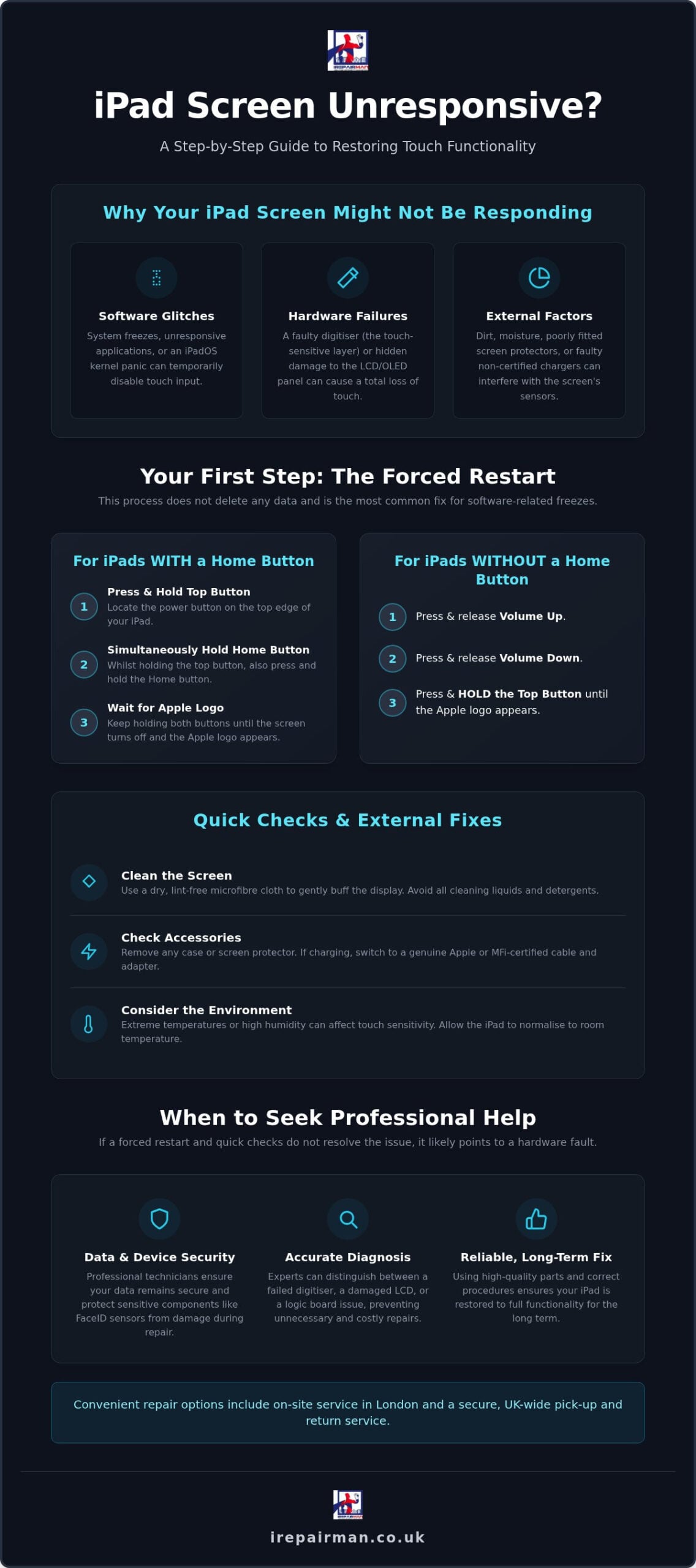
Power delivery is another hidden culprit. If your iPad becomes unresponsive whilst charging, the issue might lie with your cable. Non-certified or damaged charging blocks often lack proper electrical grounding. This sends “noise” through the digitiser, effectively drowning out the signal from your fingertips. Switching to a genuine Apple or high-quality MFi-certified charger often resolves this immediately.
External Blockages and Screen Protectors
The glass on your iPad is coated with an oleophobic layer designed to repel oils. Over time, this coating wears down, allowing skin oils and debris to build up. This residue can create a “dead zone” on the screen. Similarly, poorly fitted or excessively thick tempered glass protectors are a common point of failure. If the protector isn’t perfectly flush, tiny air gaps prevent your touch from reaching the sensors.
To restore sensitivity, follow a strict cleaning protocol. Use a dry, lint-free microfibre cloth to gently buff the surface. Avoid household detergents or window cleaners, as these strip the oleophobic coating and can seep into the edges of the display. A clean surface is often the only thing standing between you and a perfectly functioning device.
Step-by-Step Troubleshooting: Forced Restarts and Software Fixes
When your iPad screen not responding to touch prevents you from using the “Slide to Power Off” prompt, you’re essentially locked out of the software’s standard shutdown routine. This is frustrating but expected. The operating system has frozen, meaning the digitiser can’t process the swipe gesture required to close down processes. To bypass this, you must use a physical button sequence that triggers a hardware-level reboot. This force-restart doesn’t delete your data; it simply cuts the power to the processor for a split second to clear the system cache.
Forced Restart Procedures for Every iPad Model
The method depends entirely on your specific hardware. For older models with a physical Home button, press and hold both the Top (Power) button and the Home button simultaneously. Keep holding them firmly until the screen goes black and the Apple logo reappears. For modern iPad Pro, Air, and Mini models without a Home button, the sequence is more specific. Follow these three steps in quick succession:
- Step 1: Press and quickly release the Volume Up button.
- Step 2: Press and quickly release the Volume Down button.
- Step 3: Press and hold the Top Power button until the Apple logo appears.
Do not let go when the power slider appears on the screen. Continue holding until the display resets. Understanding how touch-sensitive screens work helps clarify why this reboot is necessary; it clears the temporary electrical charge and resets the controller chip that interprets your gestures. If the Apple logo appears but the iPad screen not responding to touch persists once the lock screen loads, you’ve likely ruled out a simple system hang.
Advanced Software Recovery via iTunes or Finder
If a restart doesn’t fix the issue, you may need to use Recovery Mode. Connect your iPad to a Mac or PC. Perform the forced restart sequence again, but this time, keep holding the buttons even after the Apple logo appears. Release them only when the “Connect to Computer” graphic shows on the screen. In Finder or iTunes, you’ll be given two choices: Update or Restore.
Selecting “Update” is the safest first step. It attempts to reinstall iPadOS 26.6.1 without wiping your data. If this fails, a “Restore” is the final software-based effort. This will erase everything, which highlights why regular iCloud backups are non-negotiable for professional users. If these software-level interventions don’t restore life to your device, it’s a strong indicator that the fault is physical. Our specialists provide expert iPad repair London services to diagnose whether the fault has moved from the code to the internal components.
Identifying Hardware Failure: When the Digitiser or LCD is to Blame
If software interventions haven’t restored your device, the fault likely lies within the physical display assembly. An iPad screen isn’t a single piece of material; it’s a sophisticated sandwich of three distinct layers. On top sits the protective glass. Beneath that is the digitiser, and at the bottom is the LCD or OLED panel that produces the image. When you find your iPad screen not responding to touch, the failure has usually occurred in the middle layer, even if the top glass appears pristine.
Visual cues are your best diagnostic tool here. Look for “ink splotches” or dark plumes that look like liquid trapped under the glass. These are signs of a fractured LCD. You might also notice vertical lines or flickering colours. These symptoms suggest the internal connection is compromised. Even without a visible crack, a sharp impact can cause a hairline fracture in the digitiser that effectively severs the electrical paths required to register your fingertips.
In older iPad Pro models, we frequently see issues related to ribbon cable fatigue, sometimes referred to as “Flexgate” in the wider repair community. These thin cables can wear out from the subtle, repetitive movements of the device’s chassis or from excessive vibration. Another critical hardware concern is a bloated battery. As lithium-ion batteries age or fail, they can physically expand. This creates upward pressure against the back of the screen assembly, leading to “pressure spots” or dead zones where touch input is physically blocked by the internal swelling.
The Digitiser: The Invisible Touch Layer
The digitiser is the component that translates your physical gestures into digital signals the processor can understand. When this layer fails, you’ll experience dead zones where certain parts of the screen ignore you, or “ghost touching” where the iPad behaves as if an invisible hand is tapping the glass. A microscopic fracture, invisible to the naked eye, is often enough to kill touch functionality across the entire panel. This is a high-stakes failure that requires a professional replacement to restore the device’s utility.
LCD and Internal Connection Issues
A significant drop doesn’t always break the glass, but the shock can dislodge the internal ZIF (Zero Insertion Force) connectors. These tiny plugs tether the screen assembly to the logic board. If they’re loose, the data stream is interrupted, causing a total freeze. The digitiser is the primary component responsible for touch input. Beyond connection issues, look for discolouration or “ghosting” of images, which indicates the display assembly is reaching the end of its life. At this stage, a hardware intervention is the only reliable path to regaining a working iPad.
Professional Restoration vs. DIY: Protecting Your Data and Device
When an iPad screen not responding to touch disrupts your workflow, the temptation to attempt a quick fix using online tutorials is high. However, the internal architecture of modern iPads is incredibly unforgiving. Unlike older electronics, these devices are held together with industrial-grade adhesives rather than screws. Opening the chassis without professional heating tools often leads to collateral damage. We frequently see DIY attempts that result in severed Wi-Fi antennas or permanently disabled FaceID sensors, turning a simple screen swap into a total board failure.
Quality control is another significant hurdle. Marketplaces are flooded with “cheap” replacement panels that lack the sophisticated digitiser grid found in genuine components. These third-party screens often suffer from poor touch sensitivity or “dead spots” immediately after installation. A professional repair ensures that the replacement assembly matches the original specifications, backed by a comprehensive warranty on both parts and labour. This guarantee provides the peace of mind that a home repair simply cannot offer, ensuring your private information stays safe throughout the process.
Why DIY iPad Repairs Frequently Fail
The complexity lies in the adhesive-heavy construction. Prying the glass requires precise heat application; too little and the glass shatters, too much and the LCD discolours. There is also a very real risk of piercing the lithium-ion battery whilst prying, which can lead to thermal runaway. Professional technicians utilise specialised vacuum jigs and dust-free environments to ensure the internal optics remain pristine. Without these tools, it’s nearly impossible to achieve a factory-standard seal, leaving your device vulnerable to dust ingress and future failures.
Corporate and School Fleet Considerations
For educational institutions, the stakes are even higher. Managing a fleet of hundreds of devices requires a logistical partner who understands the rhythm of the school year. We’ve been a trusted ally since we were founded in 2015, specialising in iPad repair for schools UK. Our focus remains on minimising classroom disruption through organised, bulk maintenance. London-based firms and schools often prefer our on-site B2B support. This eliminates the risks associated with couriers and ensures that sensitive student or corporate data never leaves the premises. You can protect your institutional assets and restore productivity by opting for a professional iPad repair service that prioritises security and speed.
Expert iPad Repair in London: How iRepairMan Restores Connectivity
When your iPad screen not responding to touch brings your work to a standstill, you need a solution that matches the urgency of your situation. We don’t believe you should have to navigate the logistics of a busy retail centre or wait weeks for a manufacturer’s appointment. Instead, we bring the repair shop to you. Our specialist technicians are trained to handle the most complex digitiser and display failures, ensuring your device is restored to factory standards without the typical stress of technical downtime.
On-Site Convenience in Central London
Our mobile technicians provide a discreet and professional service at your office, home, or even your hotel. We understand that for busy individuals and corporate clients, time is the most valuable asset. This is why we offer a rapid turnaround for iPad repair London, often completing the work in a single visit whilst you continue with your day. For those travelling, we also provide emergency airport repairs at Heathrow, Stansted, and Luton, ensuring a broken screen doesn’t disrupt your international itinerary.
Beyond the capital, our UK-wide pick and return service offers the same level of expertise to customers across the country. Every fix is backed by our commitment to professional accountability. We provide transparent communication throughout the process, focusing on tangible results rather than abstract technical jargon. Whether you’re managing a single device or a corporate fleet, we act as your proactive partner in maintaining connectivity and data security.
Booking Your Professional iPad Fix
Scheduling your repair is a straightforward process designed for maximum efficiency. You can book an on-site visit or organise a secure collection through our platform in just a few clicks. This streamlined approach is a core part of our mission to act as a modern innovator in service delivery. Whilst our focus here is on tablets, we apply the same rigorous standards to our iPhone screen repair London services, ensuring all your essential mobile tools remain in peak condition.
Before your technician arrives, we recommend a few simple steps to ensure a seamless experience. If your screen allows for it, perform a final iCloud backup to secure your data. Remove any protective cases and ensure the device is charged. Once our specialist is on-site, they’ll perform a full diagnostic to confirm the cause of the iPad screen not responding to touch before proceeding with the restoration. This methodical approach ensures lasting peace of mind and a swift return to your digital life.
Restoring Your Productivity with Professional Precision
Dealing with an iPad screen not responding to touch is more than a minor inconvenience; it’s a significant disruption to your professional and personal life. Whilst software resets can often clear temporary system hangs, persistent unresponsiveness usually signals a hardware failure within the digitiser or display assembly. Attempting a DIY fix risks permanent data loss and collateral damage to sensitive internal sensors like FaceID. True peace of mind comes from knowing your device is in expert hands.
Since 2015, iRepairMan has served as a reliable ally for individuals and organisations facing technical failure. We specialise in on-site repairs across Central London and act as a dedicated B2B Phone Repair HUB for corporate entities. Our expertise is also trusted by UK schools and nurseries to maintain their digital fleets with minimal disruption. Whether you require an emergency airport fix or a secure pick-and-return service, we provide the high-end, seamless restoration you deserve. You don’t have to navigate this technical challenge alone.
Book Your Professional iPad Repair in London Now and return to your routine with absolute confidence.
Frequently Asked Questions
Why is only part of my iPad screen not responding to touch?
Partial unresponsiveness, often called “dead zones,” usually indicates a localised failure within the digitiser’s electrical grid. This can be caused by physical trauma, even without visible glass damage, or a bloated battery pressing against the panel from the inside. When you find your iPad screen not responding to touch in specific areas, it’s a sign the touch-sensitive layer is compromised. Professional diagnostics can determine if the entire display assembly needs replacement to restore full functionality.
Can a software update fix an unresponsive iPad screen?
A software update can resolve unresponsiveness if the issue stems from a known bug in the operating system. Apple frequently releases patches, such as the iPadOS 26.6.1 update, to address driver conflicts and touch sensitivity glitches. However, if the screen remains frozen after an update or forced restart, the problem is almost certainly hardware-related. In such cases, the software is unable to communicate with a faulty digitiser, necessitating a physical repair to regain control.
Will I lose my data if I get my iPad screen repaired?
Professional screen repairs typically don’t involve data loss because the technician only interacts with the display assembly, not the logic board. We prioritise data security, ensuring your private information remains untouched during the process. It’s always prudent to maintain regular iCloud backups as a general safety measure, but a standard screen swap is a non-invasive procedure. Our on-site services in London allow you to witness the repair, providing an extra layer of transparency and privacy.
How much does it cost to fix an iPad screen that won’t respond?
The cost of repair varies significantly based on your iPad model and the specific nature of the failure. For instance, a basic digitiser replacement for a standard iPad is generally more affordable than a full OLED assembly for a high-end Pro model. Factors such as the availability of genuine parts and the complexity of the adhesive-heavy construction also influence the total. We recommend requesting a bespoke quote to ensure you receive accurate information tailored to your specific device.
Is it worth repairing an old iPad with a broken digitiser?
Repairing an older iPad is often a sensible investment, especially given the UK’s 2025 regulations that mandate spare part availability for seven years. If the device still supports modern iPadOS versions and meets your daily needs, a screen replacement is significantly more cost-effective than purchasing a new unit. This approach is particularly beneficial for schools managing large fleets, where repairing existing assets helps maximise the lifespan of their educational technology whilst reducing electronic waste.
How long does a professional iPad screen replacement take?
A professional screen replacement usually takes between 45 and 90 minutes when performed by a specialist. The process involves precise heating to soften the industrial adhesives, careful removal of the damaged panel, and a thorough cleaning of the internal chassis before the new assembly is sealed. Our on-site mobile service in London is designed for speed, allowing you to return to your workflow almost immediately without the logistical delays of sending your device away for days.
Can a screen protector cause an iPad to stop responding?
Yes, a poorly fitted or damaged screen protector can interfere with the capacitive sensors. If air bubbles or debris are trapped between the protector and the glass, it can disrupt the electrical field required for touch recognition. Similarly, excessively thick tempered glass may reduce sensitivity. Before seeking a repair for an iPad screen not responding to touch, try removing the protector and cleaning the surface with a microfibre cloth to see if full responsiveness returns.
What should I do if my iPad screen is unresponsive after a drop?
If your screen stops responding after a drop, immediately check for visible cracks or “ink splotches” that indicate LCD damage. Even if the glass is intact, the impact may have dislodged internal ZIF connectors that tether the screen to the logic board. Avoid pressing down firmly on the glass, as this can cause further internal damage or pierce a potentially compromised battery. Your best course of action is to power down the device and contact a technician.