
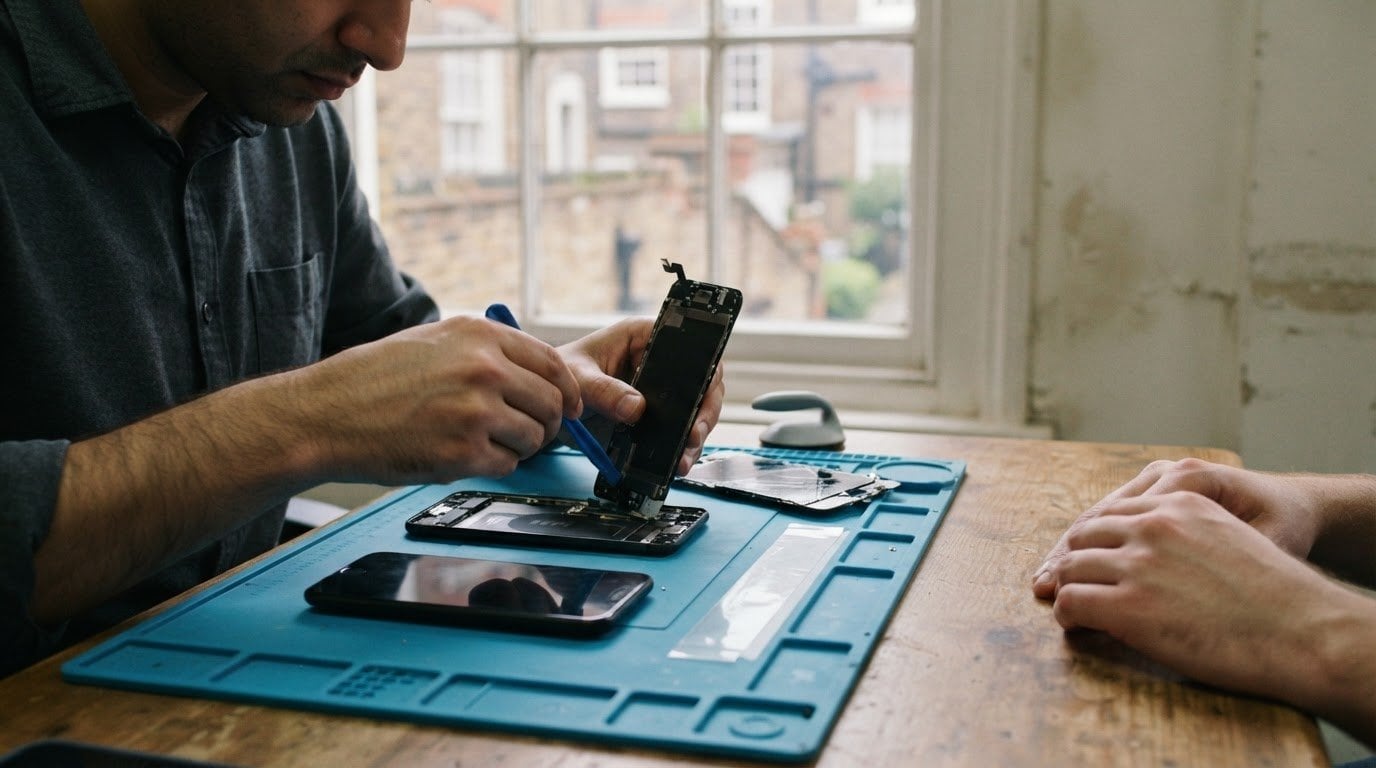
A routine screen, battery, charging-port or back-glass repair does not normally require access to your phone’s storage. Data protection during device repair means limiting access to what is needed for the agreed diagnosis and tests, not browsing your files, messages or accounts. If a phone needs to be unlocked for a specific test, the reason should be clear.
It is reasonable to feel uneasy about handing over a device containing personal photos, work messages, saved passwords and open browser sessions. A hardware fault does not automatically mean your data needs to be exposed, but the repair and the phone’s condition can affect which tests are possible.
This guide explains what technicians may need to access, how local files and active browser sessions can remain exposed after you sign out, and what to do before a repair. It also covers a damaged or unresponsive phone, when protecting data may matter more than getting the device switched on quickly.
Key Takeaways
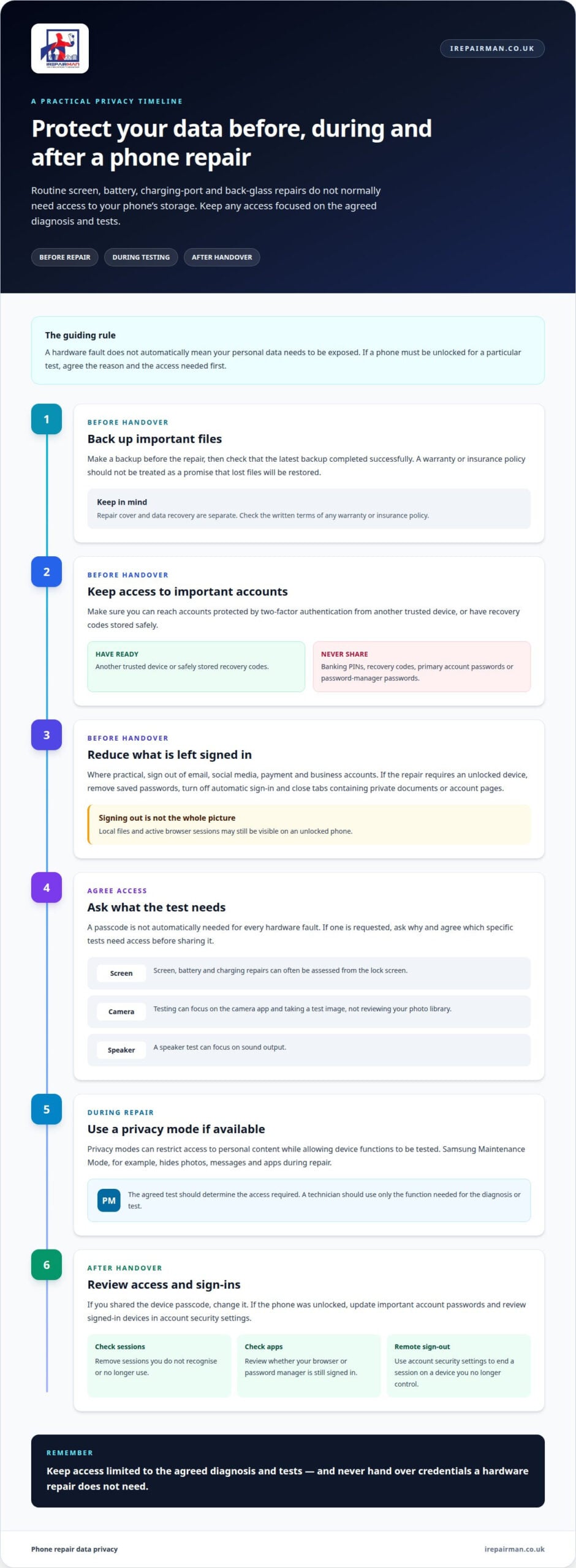
- Routine screen, battery, charging-port and back-glass repairs don’t normally need access to your phone’s storage; any extra access should be limited to the agreed tests.
- Back up your data and sign out of sensitive accounts where practical. Never share banking PINs, recovery codes or password-manager passwords with a repairer.
- Before handing over your phone, make sure you can access important accounts and two-factor authentication from another trusted device or with safely stored recovery codes.
- Signing out may not remove local files, cached emails or saved browser sessions, so consider what could still be visible on the device.
- If a phone is liquid-damaged, switch it off if possible and avoid charging or repeatedly trying to turn it on to help protect its data.
Can I trust my data to repair technicians?
Access during repair should be limited to the agreed diagnosis, repair and final tests. A passcode is not automatically needed for every hardware fault.
Limiting Passcode Access
Privacy modes restrict access to personal content while allowing technicians to test device functions. Samsung Maintenance Mode, for example, hides photos, messages and apps during repair. This lets a technician assess hardware without opening your everyday account or browsing private material. If a passcode is requested, ask why and agree which tests need it before sharing access.
Never provide your primary user account password, Google Account password, banking PIN, recovery codes or password-manager password for a hardware repair. If two-factor authentication protects an important account, make sure you can access it from another trusted device or have recovery codes stored safely. This helps prevent a repair from leaving you locked out of email, work tools or banking.
Technician Access to Private Content
Private content includes files, photographs, messages and browser history stored on or visible from an unlocked device. Researchers recorded repair staff accessing personal files or browser history in six cases. This shows why data protection during device repair should have a clear purpose rather than being treated as routine. A technician should use only the function needed for the agreed diagnosis or test.
For example, testing a camera may require opening the camera app, but not reviewing your photo library. Checking a screen fault does not require opening documents or recent browser tabs. If private material appears accidentally during a repair, staff should not copy or share it. Limiting access reduces exposure of personal photographs, work documents and account details.
Diagnostics Without Private Files
Diagnostics check whether the reported fault has been resolved by testing the relevant device function. Screen, battery and charging repairs can often be assessed from the lock screen, without opening personal files. For a camera problem, testing can focus on taking a test image; for a speaker fault, it can focus on sound output. The agreed test should determine the access required.
Before handing over a phone to specialists at iRepairMan London, describe what happened, when the problem began and any relevant update or power outage. These details help technicians narrow their investigation instead of exploring unrelated apps or files. If a specific test needs an unlocked device, agree its purpose first. Remove or change temporary access when the repair is complete.
Warranty and Insurance for Data Loss
A manufacturer’s warranty or insurance policy should not be treated as a promise that lost files will be restored. A warranty sets out which device faults or repair issues it covers; an insurance policy follows its own written terms. Data recovery and repair coverage are separate, so check the wording to understand what protection applies to a particular loss.
Back up important files before repair, then confirm that the latest backup completed successfully. For two-factor authentication, keep access to critical accounts through another trusted device or safely stored recovery codes. If a repair requires temporary access, agree on the specific test and change any shared passcode afterwards. These steps protect your account access without giving a repairer credentials they do not need.
How do technicians use customers’ personal data?
For a hardware repair, technicians should use personal data only when needed to diagnose or test the fault. Handle passwords carefully before handover and after the device is returned.
Password Changes After Repair
Changing passwords after a repair means updating credentials that may have been exposed during temporary device access. This matters because an unlocked device can leave accounts signed in, even after it is back with you.
If you shared the device passcode, change it when you collect the phone. If the device was unlocked, update important account passwords and review the signed-in devices listed in each account’s security settings. Remove sessions you do not recognise or no longer use. Check email, social media and business communication accounts, not just the app used during testing.
Remote sign-out can end an account session on a device you no longer control. Use each service’s account security settings to sign out that device, then enable two-factor authentication if it is not already active. This is especially useful if the phone remained unlocked or a browser session was open during repair.
Removing Stored Sign-in Details
Removing stored passwords and disabling automatic sign-in reduces the chance that someone opening an app or browser can access an account. Saved details may remain available even when you are not actively using the service.
Before handover, delete saved passwords from browsers and password managers if the repair requires the device to be unlocked. Sign out of email, social media, payment apps and business accounts. Turn off automatic sign-in for browser sessions and close tabs containing private documents or account pages. These steps reduce the information visible on the device.
After the repair, check whether your browser or password manager is still signed in. Review saved sign-in details and remove any temporary credentials created for testing. A screen replacement, for example, does not require a technician to use your email password or password manager.
Passwords at Device Handover
Protecting passwords at handover means sharing only the access needed for an agreed test, not giving a technician your account credentials. Device login details can expose far more than the hardware being repaired.
A repair business should assess whether the device passcode is necessary for the specific diagnosis or test. Do not share your Apple Account or Google Account password, banking PIN, recovery codes or password-manager password. If a login is requested, ask what function needs testing and whether privacy mode or lock-screen testing would work instead.
Never leave a passcode on a note, label or unprotected message. If temporary access is genuinely needed, agree on its purpose and remove or change it when collecting the device. For a screen fault, describe the symptoms and required tests; [phone repair support](irepairman.co.uk) can keep the repair discussion focused on the device problem.
Does a phone repair touch your data?
Manufacturer, authorised and independent repairers can use different procedures, so privacy depends on how access is limited and testing is managed. For screen, battery or charging-port repairs, remove physical SIM and memory cards unless they are relevant to the fault; you usually do not need to delete an eSIM. Data protection during device repair starts with agreeing which checks relate to the reported problem.
Repair-shop Privacy Practices
Repair-shop privacy practices are the rules and steps used to control access to customer information during a job. They matter because a phone can contain personal messages, business records and account sessions alongside the fault being repaired.
Manufacturer, authorised and independent status alone doesn’t show how a repairer handles data. Consider the process: access should match the agreed diagnosis, credentials should not be left on a label, and staff should test only the relevant function. According to UK legislation, UK repair businesses handling personal data are subject to the UK GDPR and the Data Protection Act 2018. Data protection during device repair should be reflected in practical handling procedures, not just a general privacy statement.
Handling Unexpected Private Material
Unexpected private material is content a technician sees accidentally while diagnosing or repairing a device. Clear handling matters because a notification, open document or photo may appear during an otherwise routine test.
If a private message appears while testing a screen, staff should not copy or share it. They should raise a technical concern with a responsible person rather than browse further. Repair businesses should record the agreed work and necessary tests without retaining extra personal information. These boundaries protect customer privacy while allowing technicians to address the fault.
Preparing a Device for Repair
Preparation means keeping a separate copy of important information and removing items that do not need to accompany the phone. A backup gives you another copy of essential files if something happens to the device during repair.
Confirm that your latest backup has completed before handing over the phone. On Android, check that photos, contacts, messages and settings have synchronised with your Google Account. Remove a physical SIM and microSD card unless either is connected to the fault. For a standard screen, battery or charging-port repair, you usually do not need to delete an eSIM.
Privacy and Trust During Repairs
Trust during repair rests on clear limits: technicians access only what the diagnosis, repair or agreed final test needs. This matters because an unlocked phone can expose more than the component being examined.
For example, testing a microphone should not require opening banking apps or personal documents. A repair process should define the device, job and relevant tests, then record that the device was returned. For a business phone, its IT contact can explain how work profiles or company policies affect testing.
Local files, cached emails and browser sessions
Signing out of an account does not necessarily remove files, cached emails or saved browser sessions from a laptop. These local traces can remain visible during repair.
Protecting Confidential Content
Protecting confidential content means reducing what can be opened on the device, not just signing out of online accounts. Saved sessions and local folders may still expose sensitive information.
Before handing over a laptop, sign out of email, social media, password managers and WhatsApp Web. Close browser tabs containing work documents or financial records, and remove confidential files or personal photos that are not needed for the repair. Signing out alone may not clear cached emails, local files or saved sessions, so consider what remains stored on the device.
Drive encryption adds another layer of protection if someone has physical access to a laptop. Drive encryption can add a layer of protection for data stored on a device, particularly if someone has physical access to it. Without encryption, physical access may allow someone to attempt to access files on the drive. A temporary standard Windows user account can also keep repair testing separate from the owner’s files and sensitive settings.
Photos deserve particular care. In recorded repair cases, staff copied user files to an external device in two cases, and both involved explicit photos. Keep sensitive images out of folders a technician needs to test, and use a locked or hidden album where available. On an iPhone, Face ID can protect the Hidden Album.
Backing Up Files Before Repair
A backup is a separate copy of important files, kept so you can recover them if the original device data is lost. This matters because repair work can involve software changes or actions that affect stored information.
Before a laptop repair, copy essential documents to an encrypted external drive or trusted cloud storage, such as OneDrive. For a phone, confirm that the latest backup has completed rather than assuming an overnight sync succeeded. Android users can check that photos, contacts, messages and settings have synchronised with their Google Account.
Keep the backup separate from the device being repaired, then confirm you can access the copied files. If a factory reset or software restore is proposed, ask what it will erase and agree before it happens. A repairer should obtain consent before taking an action that could delete files.
Clear boundaries also apply to file handling. Technicians should copy data only when recovery is part of the agreed work, and should not transfer customer files to external devices for unrelated testing. For an ordinary screen or battery repair, personal documents and browser history are not part of the hardware test.
Protecting data on water-damaged or unresponsive phones
When a phone stops responding, protecting personal data may matter more than getting it to switch on immediately. The next action can affect both the device and the confidential information stored on it.
If liquid reaches a phone, switch it off if possible, avoid charging it and stop trying to turn it on. Repeated attempts to power up or charge a wet device can add electrical stress while moisture remains inside. Do not connect it to a computer to look for files. Leave the phone off and explain what happened, when it happened and whether it was charging or had recently been updated.
A dead screen creates a different problem: the phone may still be running, but you cannot see what it is doing. Avoid a factory reset if you are trying to preserve data. A reset erases stored information rather than fixing the screen, so it will not recover personal photos, messages or documents. Explain that data preservation is a priority before any action that could erase information.
Modern iPhones pair and encrypt storage with the board’s processor and Secure Enclave. Replacing the logic board can therefore leave the original storage and its data behind with the removed board. Component-level repair works on the original board and may preserve access to soldered storage. This distinction matters when a phone contains the only copy of confidential photos or work files.
Keep the repair goal clear: restoring normal operation and recovering stored data are not automatically the same task. A phone may need hardware diagnosis even when its files are the immediate priority. Explain whether the device contains an essential backup, what happened before it failed, and which data must be preserved. For example, a phone that went dark after liquid exposure needs a different initial approach from one with a cracked screen but working power.
Do not approve a reset, software restore or board replacement without understanding its effect on the original data. Ask for the proposed action to be explained in plain terms, including whether it changes or replaces the board. If the phone is unresponsive, avoid repeated restarts to retrieve data; prioritise preserving its current condition for assessment.
If the device also has a separate screen fault, arrange a screen repair and explain that preserving its data is important.
IRepairMan London
iRepairMan London repairs phones and tablets, with data privacy as an important part of the process. Its encrypted, no-access data safety protocol is designed to prevent technicians from accessing personal content during repair. If your device has a fault, explain what happened and identify any data you are especially concerned about before work begins.
For a cracked iPhone screen or back glass, an iPad fault or a Samsung phone issue, the repair should focus on the agreed device problem. Private photos, messages and accounts are not part of the repair task. iRepairMan London can explain the relevant repair and what to expect from the process.
Contact iRepairMan London to discuss your device and repair needs.
Make privacy part of your repair decision
Choose your next step with the value of the device’s contents in mind, not just the visible fault. A phone that holds essential work access or irreplaceable family photos may call for a different repair conversation from a device with nothing important stored locally. Being clear about your priorities helps make data protection during device repair part of the agreed plan.
iRepairMan London provides iPhone screen repair, iPhone back-glass repair and iPad repairs. Tell the team what has failed and whether preserving information is a priority, so the repair can be discussed in that context. You can then decide how to proceed with a clearer understanding of the work involved.
Discuss your repair with iRepairMan London and take the next step with confidence.
Frequently Asked Questions
Do I need to give my passcode for a screen or battery repair?
Usually, no: a screen or battery repair does not normally need access to your phone’s storage. A technician may need to test a function after the repair, but some checks can be done from the lock screen. If unlocking is requested, ask which specific test needs it and whether privacy mode or limited temporary access could work instead.
How does prioritising customer data privacy build trust?
Clear access limits show customers that the repair is restricted to the fault they agreed to have fixed. For example, a screen test should not involve opening messages or browsing photographs. Careful credential handling and an explanation before any data-erasing action help customers understand what will happen. That predictability matters when a phone also holds work accounts or family information.
My phone is dead. Can my data still be recovered?
Possibly, depending on the fault and the phone’s storage and board condition. A phone that will not power on may need diagnosis before anyone can know whether its data remains accessible. If liquid caused the failure, switch it off if possible and avoid charging or restarting it. Explain that preserving the original data matters before agreeing to a reset or board replacement.
What are the benefits of protecting data privacy?
It reduces the chance of exposing private material while a device is tested or repaired. This can protect saved account sessions, personal photographs, contact details and confidential work documents. Privacy safeguards also keep repair access focused on the fault, so a technician can test the relevant function without browsing unrelated apps. A separate backup gives you another copy of important information.
What sets a trusted repair network apart?
A trustworthy repair process makes the agreed job and necessary tests clear, limits access to relevant device functions, and handles credentials carefully. For a Central London customer, practical signs include being told why a test needs an unlocked phone and what it involves. Staff should not copy or share private material encountered accidentally, and any data-erasing action should be discussed beforehand.
Will a repair wipe my phone or factory reset it?
A hardware repair does not automatically mean your phone will be wiped, but a reset or software restore can erase stored data. Ask what a proposed action will change before agreeing to it. Back up important information first where possible. If you are trying to preserve data on a phone with a dead screen, avoid a factory reset because it removes information rather than repairing the display.
How should I back up and secure my data before sending a device for repair?
First, confirm that a recent backup has completed and that you can access the copied files. For Android, check that photos, contacts and messages have synchronised with your Google Account. Sign out of sensitive accounts on a laptop, close browser sessions, and remove physical SIM or memory cards unless they relate to the fault. Keep recovery codes somewhere separate from the device.
Can a repair shop ask for my device passcode or account password in the UK?
A repair shop can ask for a device passcode, but that does not make it necessary for every repair. Ask what test requires access and whether it can be completed another way. Don’t provide your Apple Account or Google account password, banking PIN, recovery codes or password-manager password for a hardware repair. UK repair businesses handling personal data are subject to the UK GDPR and the Data Protection Act 2018.