

Treat a corporate device repair as part of your organisation’s equipment process, not an informal hand-off. Assign responsibility for approving the repair, define the authorised work and decide who can return the device to service. Clear decisions help staff respond consistently when a fault interrupts normal work.
Phones and tablets support customer communication, staff coordination and daily operations, so a repair can affect more than the person using the device. Teams need a practical way to restore essential equipment while protecting information and maintaining clear responsibility throughout the repair.
This guide covers steps for business teams preparing devices, overseeing repairs and responding to unexpected problems. It also shows how to build security checks into routine equipment management, rather than adding them only when a fault becomes urgent. Use the guidance to shape a process around your organisation’s devices, roles and working arrangements in Central London.
Key Takeaways
- Give staff individual accounts and only the access their roles require; review permissions when responsibilities change.
- Use device encryption and approved backups to reduce the risk of sensitive information being exposed if equipment is lost.
- Set devices to lock automatically, and lock them yourself whenever you step away, even briefly.
- Build a clear handover routine for shared equipment, including signing out and saving files in approved locations.
- Prepare for a missing device in advance: know who to notify and make sure remote lock or wipe options are configured.
Restricting access to personal information
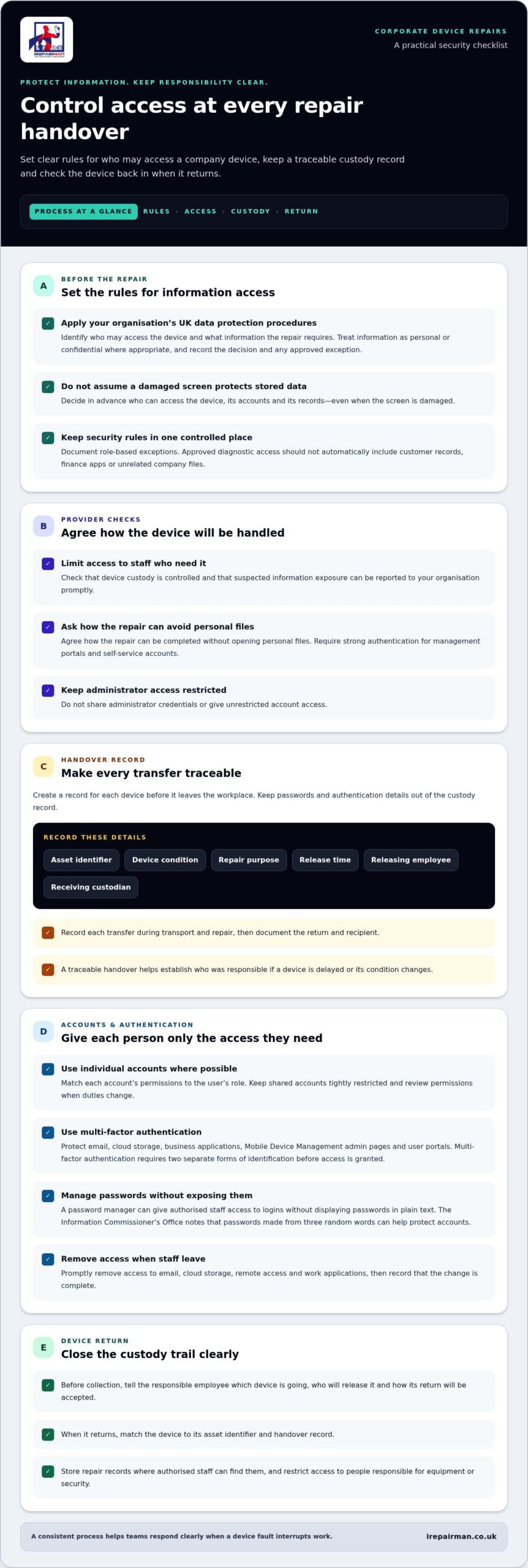
Before a repair, decide who may access the device, its accounts and its records. These steps help limit exposure and keep responsibility clear.
-
Check applicable UK data protection rules
Apply your organisation’s UK data protection procedures before sending a company phone or tablet for repair. Treat information on the device as personal or confidential where appropriate, identify who can access it and decide what information the repair requires. UK data protection rules govern how organisations handle personal information. Don’t assume a damaged screen prevents access to stored data. Record your decision and any approved exception.
-
Assess repair provider security checks
Set security requirements for the repair provider before handing over equipment. Confirm that access is limited to staff who need it, device custody is controlled and any suspected exposure can be reported to your organisation promptly. Ask how the repair can be completed without opening personal files. Require strong authentication for management portals and self-service accounts, and don’t share administrator credentials or unrestricted account access.
-
Document custody, transport and access
Create a record for each device before it leaves your workplace. Include its asset identifier, condition, repair purpose, release time, releasing employee and receiving custodian. Record each transfer during transport and repair, then document the return and recipient. Keep passwords and authentication details out of the custody record. A traceable handover helps your team establish who was responsible if a device is delayed or its condition changes.
- Where possible, assign individual user accounts to shared business devices. Match each account’s permissions to the user’s role, so a repair account cannot access administrator settings, financial systems or unrelated company files. Keep shared accounts tightly restricted and review permissions when duties change. A password manager can give authorised staff access to logins without displaying passwords in plain text.
- Use multi-factor authentication for email, cloud storage and business applications. The Information Commissioner’s Office describes multi-factor authentication as requiring two separate forms of identification before access is granted. Apply strong authentication to Mobile Device Management admin pages and user portals too. When staff leave, promptly remove access to email, cloud storage, remote access and work applications, then record that the change is complete.
- Keep your organisation’s security rules in one controlled place and document role-based exceptions. For example, a technician’s approved diagnostic access should not automatically include access to customer records or finance apps. Review permissions regularly as teams and responsibilities change, because access can accumulate unnoticed. The Information Commissioner’s Office notes that passwords made from three random words can help protect accounts. Pair this approach with restricted permissions.
- Before collection, tell the responsible employee which device is going, who will release it and how its return will be accepted. Match the returned device to its asset identifier and handover record. Store repair records where authorised staff can find them, and restrict access to people responsible for equipment or security. This makes the custody trail useful without creating another source of unnecessary personal information.
Device encryption
Secure device handling for corporate repairs starts with encryption and a tested backup. Wiping or factory resetting isn’t automatic; choose whether to do so based on the repair task, company policies and the information stored on the device.
-
Check device encryption
Confirm encryption is enabled on each phone or tablet before it leaves your control. Encryption scrambles stored information, helping prevent access without the correct login details. Loughborough University explains this protection for mobile devices. Include encryption in your device-management baseline and record whether each device meets the policy. Don’t assume a screen lock alone encrypts stored files.
-
Decide whether to wipe the device
Review the repair task and your organisation’s policies before wiping anything. A factory reset removes local data and settings, which can affect diagnostics or repair work. Back up required files first, then decide whether encryption and access restrictions are sufficient. If a reset is needed, record who approved it and confirm the device can be restored afterwards.
- Keep important business information in approved cloud services or backed-up locations, rather than on a single device. Before handover, confirm the latest backup completed and essential contacts, documents and work apps can be restored. The Information Commissioner’s Office advises businesses to back up data regularly and check that backups work. An untested backup may fail when needed.
- Protect removable storage as well as the device. If staff need USB storage on shared equipment, allow only approved, encrypted drives. Loughborough University advises encrypting sensitive information on flash drives and external hard drives, then keeping them locked away. The Information Commissioner’s Office also advises storing an external backup drive away from the main workplace and encrypting it.
- Keep systems controlling device encryption secure. Mobile Device Management can hold keys needed to unlock, decrypt or remotely wipe enterprise devices. Restrict administrator access and require strong authentication. Assign permissions only to staff who need them for their roles. A poorly protected management account could undermine encryption policies across enrolled phones and tablets.
- Record encryption and recovery arrangements alongside each device’s asset details. Note its identifier, encryption status, backup location and the person responsible for restoring access. Don’t put passwords or recovery keys in an open repair note. Store recovery details using your organisation’s approved secure method, so authorised staff can retrieve them without exposing them to others.
- For secure device handling for corporate repairs, treat remote locking and wiping as extra safeguards, not replacements for encryption or backups. A wipe command depends on the device coming online and remaining managed. Confirm it is enrolled and authorised staff know how to apply the relevant policy. This preparation helps protect information if equipment is lost or stolen.
Locking unattended devices
Set an automatic screen lock, and make manual locking part of everyday use. Loughborough University advises locking computers, phones and tablets whenever they’re unattended, even briefly.
- Set shared business devices to lock after five to ten minutes of inactivity. This limits how long an unattended screen stays open, for example when a receptionist steps away to greet a visitor. Apply the setting consistently to phones and tablets, and record any approved exception. Choose a timeout that protects the screen without interrupting essential tasks.
- Require a PIN, password or fingerprint before someone can reopen the device. Loughborough University recommends these protections for mobile devices. Check that the chosen method works reliably for the staff using the equipment, including during busy shifts. A lock that employees regularly bypass is less useful, so make the instruction clear and keep the approved method practical.
- Lock the screen whenever you leave a device, even for a moment. At a Central London office, lock a phone before stepping away from a meeting-room table or shared desk. Loughborough University gives this advice for computers, phones and tablets. Treat a quick conversation, printer collection or trip to another room as a reason to secure the screen first.
- Make screen locking a clear part of shared-device use. Before passing a tablet to a colleague, employees should finish their task and lock the screen. The next authorised user can then unlock it for their own work. At a shift change, name the person responsible for putting equipment away, rather than leaving a phone on a counter for someone else to notice.
- Apply the same screen-lock policy across managed devices using your organisation’s device-management settings. Review the rule when a phone is enrolled, replaced or reassigned. If a tablet needs to remain visible for a specific task, such as displaying a meeting-room schedule, document the exception and its purpose. Don’t let a special use become the default for other equipment.
- Test the lock before leaving a device unattended. Lock the screen, then wake it and confirm it requests the approved PIN, password or fingerprint before showing work content. Include this check in routine equipment reviews. If a reception phone stays open, notify the person responsible for its settings and keep it supervised until the lock works as intended.
- Place a visible reminder where shared devices are used. A short notice beside a reception tablet can prompt the last user to lock and return it after visitor check-in. State who should secure it and where it belongs. This simple cue helps prevent employees from assuming the next person will take responsibility for an unattended device.
Securing unattended devices
Compare repair routes by custody, handling and logistics. On-site work avoids sending a device away; depot and manufacturer repairs involve transport and handovers. Security depends on access controls at each stage, while turnaround depends on diagnosis, parts and scheduling. Costs depend on the repair and transport requirements, so no route is always the cheapest or quickest.
- Set rules for shared devices before leaving them unattended. Use kiosk mode to restrict a tablet to one approved app, such as visitor check-in or a meeting-room display. This prevents casual users from opening other apps or files. For each device, record its assigned purpose, permitted user actions and the person responsible for returning it.
- Where possible, schedule updates outside working hours, then confirm each device received them. An employee can check the device-management record and test that required apps open afterwards. Don’t assume an update completed just because it was scheduled. Keep devices supervised until their update status and any required authentication have been checked.
- Use a handover routine whenever equipment moves between employees or work areas. Sign out of apps, clear documents from the printer queue, save files in the approved location, then lock or return the device. For example, a shared desktop used at reception should not retain visitor forms or open accounts after a shift ends.
- Verify a repaired device before returning it to its user. Match its asset identifier to the repair record, inspect its condition and test the reported fault. Confirm the screen lock and required authentication work, and check that company policies still apply. If updates were performed, verify they completed and approved work apps remain accessible.
- Keep the return handover controlled. Record who receives the device, when it is returned and whether its condition or settings changed. Ask the recipient to sign in with their own credentials, not a colleague’s password. Confirm work files are in approved storage and shared devices are back in their assigned location.
- When comparing repair routes, assess practical security controls rather than relying on the label alone. On-site repairs can reduce transport handovers, while depot or manufacturer routes require clear custody records during collection and return. Document who can access the device, how it is stored and what updates or checks happen before release. These details help teams compare security and expected turnaround.
- Keep a return checklist for each device type. A phone may need its work apps and authentication tested; a visitor tablet may need kiosk mode restored. Record any approved exception, such as a temporary app restriction during testing. The employee accepting the equipment should know where to report a fault before the device returns to normal use.
What to do if things go wrong
Prepare an incident process for a missing device, suspected data exposure or repair handover problem. Act quickly, record decisions and assign one person to coordinate the response.
- Notify your organisation’s security contact as soon as a device is lost, stolen or handled unexpectedly. Give them its asset identifier, assigned employee, last known location and the time it went missing. Include whether it was a phone, tablet or laptop and what business information it could access. Don’t wait for a complete account before raising the alert.
- Use your device-management service to locate, lock or erase missing equipment if those controls were configured in advance. Remote actions depend on the device coming online and remaining managed, so they don’t replace encryption or backups. Record who issued the command, when it was sent and whether the management software reported a result.
- Restrict related accounts if the missing device could access email, cloud storage or business applications. Under your organisation’s incident process, the responsible administrator can revoke active sessions or change access credentials. Prioritise accounts with access to shared files or sensitive business systems. Record each change, the account affected and the reason for the action.
- Preserve evidence if a repair handover or device return raises concern. Keep the custody record, collection details, repair notes and relevant communications together. Note any unexplained change in the device’s condition, settings or access. Avoid deleting records or resetting equipment until the incident lead decides what information needs preserving.
- Check whether personal information may have been exposed and follow your organisation’s established breach-response process. Record the type of information involved, the device’s access permissions and who may be affected. Escalate the facts to the person responsible for data protection. Keep the timeline factual, including when the incident was discovered and who was notified.
- Restore a replacement or recovered device from an approved backup, then reapply required software and security controls before normal use. Confirm updates completed, work accounts use the correct authentication and shared apps contain no unauthorised sessions. Keep the device out of service until the responsible team records its checks and approves its return.
- Review the incident with the employees involved and update the procedure where needed. Identify whether a missed handover, unclear reporting route or device-management setting contributed. Use a specific example, such as a phone left in a collection area without a named custodian. Give staff a clear reporting contact and practise the response process for shared equipment, using platforms like WestNet LMS to deliver ongoing training on corporate device security policies.
A responsive MDM service matters when policies must take effect quickly, including when wiping a lost or stolen device. Confirm the service can receive and apply commands promptly, and keep the incident coordinator informed of any delay or failed action.
IRepairMan London: iPhone Screen Repair
iRepairMan London repairs iPhone screens when a cracked display makes a company phone difficult to use. Before handover, follow your organisation’s security process: back up required data, control account access and record the device transfer. This helps your team manage the repair while maintaining privacy and custody.
A damaged screen can disrupt calls, messages and daily tasks. Arrange a repair when the display affects reliable use, and share only the information needed to identify the device and repair request. iRepairMan London also repairs iPhone back glass, iPads and Samsung phones.
For details or to discuss an iPhone screen repair, contact iRepairMan London or visit irepairman.co.uk.
Keep your next repair secure and straightforward
Make each repair part of your normal device-care process. Before arranging work, decide who will approve the handover, what information the technician needs and how your team will confirm the device is ready for use again. Secure device handling for corporate repairs is easier to maintain when these decisions are built into a repeatable process, rather than made under pressure after a fault occurs.
For a damaged iPhone display, iRepairMan London repairs iPhone screens. Its services also include iPhone back glass repairs and iPad repairs. Share the device type and repair issue when you get in touch, and maintain your organisation’s access controls throughout the repair.
When a phone or tablet needs attention, contact iRepairMan London about a repair. A clear next step can help your team get the device assessed and plan its return to work.
Frequently Asked Questions
What does secure device handling mean for corporate repairs?
Secure device handling means controlling who can access a device, its information and its repair handovers. For example, a team phone should have a named owner, an approved repair record and a clear return process. Staff should share only the details needed to explain the fault. This keeps repair activity accountable without giving technicians access to unrelated messages, customer records or company files.
How should businesses prepare devices for repair without exposing sensitive data?
Prepare the device by limiting what appears on screen and what can be opened during testing. Hide message previews, sign out of sensitive apps if this won’t disrupt diagnosis, and describe the fault without including customer names or case details. Label the device with an asset reference rather than an employee’s personal information. Tell the repair contact which functions need testing, such as touch response or charging.
What should a business do if data is lost or exposed during a repair?
Notify your security or data protection lead promptly, then establish what information may have been affected and who could access it. Preserve repair records and relevant messages, and note the incident timeline while details are fresh. The data protection lead can assess next steps under your organisation’s breach procedure, including whether notification duties apply. Keep affected staff informed through the agreed internal process.