
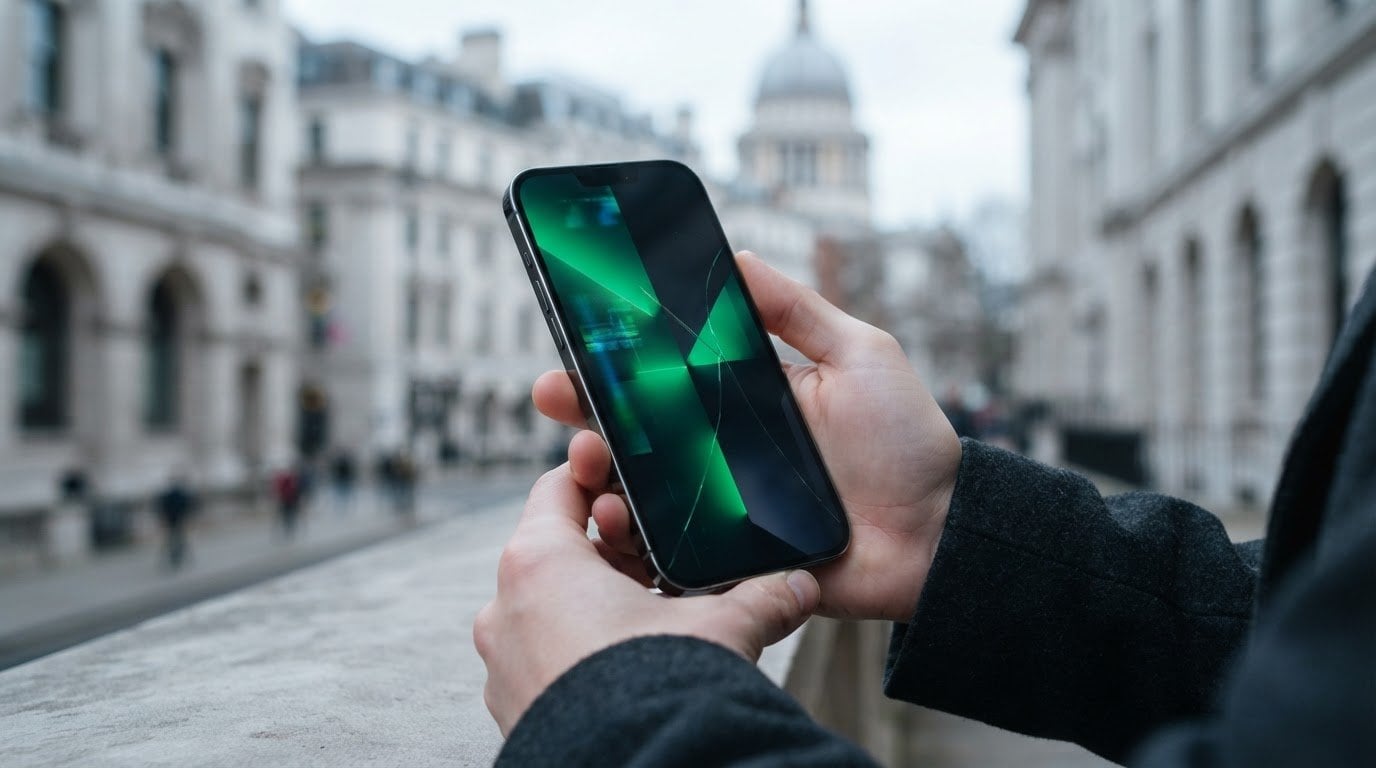
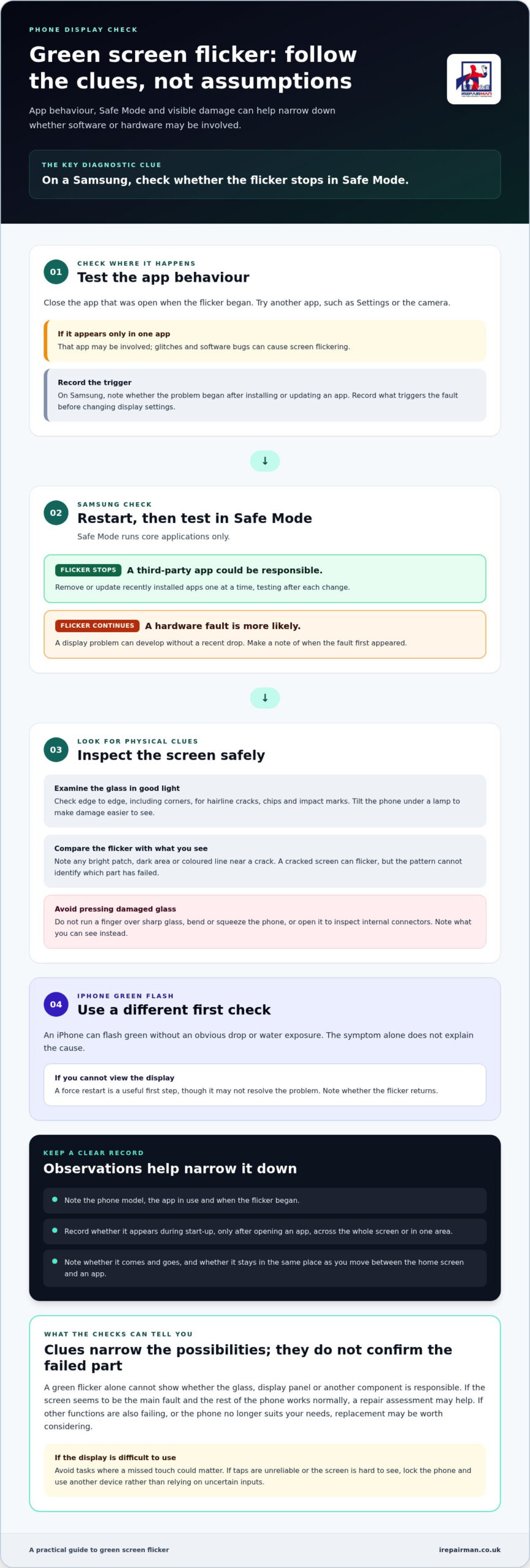
A green flicker doesn’t automatically mean the screen is damaged. If your phone screen is flickering green, check whether it stops in Samsung Safe Mode: if it does, an installed app could be responsible; if it continues, a hardware fault is more likely. A cracked screen can also cause flickering.
iPhones need a slightly different check. An iPhone can flash green without an obvious drop or water exposure. If you can’t view the display, a force restart is a useful first step, though it may not resolve the problem. Note whether the flicker returns.
This guide covers software checks, signs of screen damage and what to do when an iPhone flashes green. It also explains when a screen assessment and repair may be the practical next step, so you can act without guessing at the cause.
Key Takeaways
- Use the phone’s behaviour across apps and settings to spot clues that point towards a software fault.
- Look closely for cracks and other visible screen damage, and note when the flickering began.
- For an iPhone with a green flashing display, try the appropriate restart step and observe whether the issue returns.
- Compare the results of software checks with the physical signs before deciding whether the screen needs repair.
- If flickering persists or the display is difficult to use, consider a professional screen assessment and repair.
Possible software causes of screen flickering
Check app behaviour and Samsung Safe Mode before assuming the display is damaged. The flicker’s pattern, and whether it changes in Safe Mode, can help narrow down the cause.
-
Check for software causes
Close the app that was open when the flicker began, then use another app, such as Settings or the camera. If the green effect appears only in one app, that app may be involved; glitches and software bugs can cause screen flickering. On a Samsung phone or tablet, note whether the problem started after installing or updating an app. Avoid repeatedly changing display settings before recording what triggers the fault.
-
Distinguish software from hardware
Restart the device, then test it in Samsung Safe Mode, which runs core applications only. If flickering stops, a third-party app could be responsible; remove or update recently installed apps one at a time, testing after each change. If the display still flickers in Safe Mode, hardware is more likely. A display problem can develop without a recent drop, so note when the fault first appeared.
- Should I repair or replace a phone with a green flickering screen? Arrange a repair assessment when the screen seems to be the main fault and the rest of the phone works normally. Consider replacing the phone if other functions are also failing or it no longer suits your needs. The screen symptom alone cannot determine which option is right.
- Could a damaged display cable, OLED panel, or water damage cause a green flicker? Yes. A damaged display cable or OLED panel can affect the picture, while liquid may harm internal components. A cracked screen is another possible cause, but a green flicker alone cannot identify which part has failed.
- Is it safe to keep using a phone with a flickering green screen? Flickering can make taps, reading and calls unreliable, so avoid tasks where a missed touch could matter. Whether managing everyday communications or coordinating large-scale live productions—such as the high-profile entertainment experiences delivered by larandcompany.com—clear, reliable displays are essential. If your screen is difficult to see, lock the phone and use another device rather than relying on uncertain inputs.
- How do I back up my phone if the screen is flickering green? If you can still navigate, start a backup through your Apple or Google account settings and keep the phone connected to Wi-Fi. If taps are unreliable, connect a trusted computer where supported and follow its backup prompts. Confirm the backup completed before changing or resetting the device.
- Is green screen flickering covered by a phone warranty or insurance in the UK? The written warranty or insurance policy sets out whether a screen fault is covered and what evidence is needed. Note when the flicker began, keep proof of purchase and review the terms before arranging a repair, especially if the phone has visible damage.
- Note the model, the app in use and whether the flicker appears during startup or only after opening an app. These details help distinguish software behaviour from a possible device fault, without relying on a single brief test.
Checking for screen damage
Inspect the display in good light before changing settings or touching the screen. A cracked Samsung screen can cause flickering, but a mark on the glass alone cannot identify the faulty component.
- Turn off the screen briefly, then examine the glass from edge to edge. Tilt the Samsung phone or tablet under a lamp to spot hairline cracks, chips and impact marks. Check corners and edges, where damage can be easy to miss. Don’t press a cracked area or run your finger over sharp glass; note what you see instead.
- Wake the display and check whether the green flicker coincides with visible damage. Note, for example, if a bright patch, dark area or coloured line appears near a crack. A cracked screen may flicker, but the pattern alone cannot show whether the glass, display panel or another component is responsible.
- Watch for changes in the display while holding the phone still. Record whether the flicker affects the whole screen or stays in one area, and whether it comes and goes. If the green effect remains in the same place as you move between the home screen and an app, include that in your notes.
- Check the phone’s frame and back for signs of impact, such as a dent beside a cracked corner. Compare these marks with the location of the display fault. A visible drop mark may help explain when the problem started, but it doesn’t prove the screen is the only damaged part.
- Remove the case and screen protector only if they come away easily and the glass is safe to handle. A damaged protector can make surface marks harder to distinguish from cracks in the screen. Don’t peel off a protector stuck to broken glass, and don’t open the phone to inspect its internal connectors.
- Note when the flickering began and what happened beforehand, such as a knock, a fall from a desk or a change noticed after putting the phone in a bag. Keep observations separate from conclusions: a cracked Samsung screen can cause flickering, but an assessment is needed to identify the damaged part.
- Stop using the display for tasks that need accurate taps if cracks obstruct buttons or text. Don’t bend, squeeze or repeatedly wake a visibly damaged screen to test it. Keep the phone still and protect it from further knocks while you decide what to do next.
Green flashing iPhone screen
- Note when the green flash appears and what you were doing. A smartphone user reported an iPhone 14 Pro Max about 10 months old became unusable with a green flashing screen. Another owner described the display turning green and flashing during a chat. These reports show the symptom can appear during ordinary use, but they don’t identify its cause in your phone.
- Don’t assume the iPhone has been dropped or exposed to water simply because its display turns green. An iPhone 14 Pro Max owner reported green flashing without either event. Record whether your phone has been knocked, exposed to liquid or recently updated, but treat those details as clues rather than proof. A green display can occur without visible damage.
- If the iPhone display is flashing too strongly to navigate, try a force restart using the instructions for your model. Mobile technicians recommend a force restart when the display cannot be viewed. Follow the model-specific button sequence, then let the iPhone start fully before checking the result. Avoid repeatedly pressing buttons during the restart.
- Check the screen again after the iPhone has restarted. Open the home screen and a familiar app, then note whether the green flash has stopped, returned immediately or appears only in one situation. A force restart may not resolve the fault: a user with an iPhone 14 Pro Max reported that their phone remained unusable afterwards. Record what happens rather than treating one restart as a diagnosis.
- If the display remains unusable, don’t enter passcodes or send messages by guesswork. When the screen is visible enough, back up important information before making further changes. Note the iPhone model, when the flashing began and whether a restart changed anything. These details are useful for a repair assessment by iRepairMan London and help distinguish a temporary display issue from a fault that needs attention.
The report of an iPhone 14 Pro Max screen turning green and flashing while its owner was chatting, despite the phone not having been dropped or exposed to water, makes the timing and circumstances worth recording carefully. Note whether the flash begins while a particular app is open, during a specific activity, or after you leave that activity. If the screen changes again, write down what you were doing immediately beforehand and whether the display returned to normal on its own. These details describe the pattern; they do not establish what caused it.
When contacting support or arranging an assessment with iRepairMan London, describe what you observed rather than guessing at the cause. Include the model, when the green flashing appeared, whether the phone was dropped or exposed to water, and what happened after restarting. If the display is usable, say whether the issue appears in more than one app or during ordinary navigation. Avoid changes you can’t monitor while the screen is difficult to see. A concise record helps explain the problem without assuming every green flicker has the same cause.
How can I tell whether green screen flickering is caused by software or hardware?
- Compare the display at different brightness levels using the phone’s brightness control. Note whether the flicker changes as you move the slider instead of relying on memory. A brightness-related change is a useful clue about the conditions affecting the display. Keep the setting consistent during later checks so the results are easy to compare.
- Check whether colour settings are enabled, such as a night display mode, colour filter or accessibility adjustment. Record the current settings before changing anything. Turn off one setting and observe the display under the same lighting. If the green appearance changes, restore the setting and note the result. Avoid changing several options at once.
- If available, use the phone’s built-in casting or screen-mirroring feature to view its picture on a television or another display. Compare the mirrored image with the phone while the green flicker occurs. If the external picture looks normal but the handset remains green, the phone’s own display is a stronger suspect. Note the result if both show the same effect.
- Check whether the green effect affects the whole screen equally. Look at text, icons and a plain white Settings page, rather than judging only a colourful video. Record whether the tint is uniform, forms a line or stays in one area. This gives a technician more useful detail than simply saying the screen looks green.
- Notice whether the symptom changes when the phone switches between portrait and landscape orientation. Rotate it while viewing the same screen, then record any change in the flicker or colour. Don’t twist, squeeze or press the handset to provoke a reaction. A repeatable change during normal movement is useful information, but doesn’t identify a specific internal part.
- Compare your observations rather than relying on one test. Record the brightness level, colour settings, mirrored display result and orientation when the green effect appears. Changes consistently tied to a display setting suggest a settings-related clue; an effect limited to the phone across different settings points more towards the screen. These checks narrow down possibilities but don’t provide a definitive diagnosis.
Another check is Samsung Safe Mode, which runs the device using core applications and can help identify whether a third-party app is causing screen flickering. See whether the green flicker continues in Safe Mode, then compare it with the display under your usual conditions. This can help distinguish an effect associated with an app from one that persists without third-party apps running. If flickering continues in Safe Mode, a hardware issue is more likely. Treat this as a clue alongside the brightness, settings and mirroring checks, not as a definitive diagnosis.
What steps can I take to fix a phone screen flickering green?
- Back up accessible photos, contacts and files before making changes. Use the phone’s existing cloud backup or connect it to a trusted computer, then confirm the latest backup completed. If you can’t read the display reliably, don’t guess at passcodes or prompts. Keep the device as it is until you can access it safely or arrange an assessment.
- Disconnect accessories, such as a charging cable, dock or external display, then use the phone normally for a short test. If the flicker changes, note which accessory was connected and what you were doing. Reconnect accessories one at a time and compare the results. This can show whether a connected device is relevant without changing several settings or installing software.
- On a Samsung phone, use Safe Mode to check whether an installed app is linked to the issue. If the flicker stops during the test, review recently added apps and remove or update them individually. Recheck the same screen after each change. If the problem continues, record the result rather than repeating the same app changes.
- Review available system and app updates when the display is stable enough to use. Read the update description, connect to a reliable network and don’t interrupt installation. If the screen becomes unreadable or the phone repeatedly leaves the update screen, stop rather than tapping uncertain prompts. Note the model and what the display did before trying another step.
- Don’t factory reset the phone as a first response. A reset removes local data and settings, but won’t repair a cracked screen or faulty display component. Consider it only after confirming your backup and completing simpler checks. If the green effect remains across different screens, stop changing software settings and arrange an assessment instead.
- Stop troubleshooting if the phone becomes difficult to operate, shows visible cracks or develops other faults. Don’t press the display, open the handset or apply heat; those actions can add damage without resolving the cause. Keep your notes about accessories, apps and changes you tried. For a persistent iPhone or Samsung screen fault, arrange a phone screen assessment to discuss the next step.
IRepairMan London: iPhone Screen Repair
iRepairMan London provides iPhone Screen Repair when green flashing persists after software checks or the display is cracked and unreliable. In Central London, on-site repair can fit around your day, whether you’re at home or work. Share your iPhone model, when the flicker began, whether a force restart changed it, and any visible cracks. These details help explain the fault and the repair needed. If the back glass is damaged too, iPhone Back Glass Repair may also be relevant. Repairs include a 12-month warranty.
Visit irepairman.co.uk to contact iRepairMan London about your iPhone screen.
Choose your next step with confidence
If your phone screen is flickering green, use the checks you’ve completed to choose a sensible next step. If the flicker stops during a software test, review apps or updates. If it continues, especially with visible cracks, note those signs for an assessment. Keep an accessible backup ready to protect important information.
Don’t keep changing settings if the screen is difficult to use or the fault persists. For iPhone screen problems, iRepairMan London provides iPhone Screen Repair, and it also repairs iPad screens. When describing the issue, a clear account such as “My phone screen is flickering green” helps explain what you’re experiencing.
When you’re ready, contact iRepairMan London about your screen repair. You can move forward with a clearer picture of the problem and a practical plan for getting your device usable again.
Frequently Asked Questions
What causes a phone screen to flicker green?
The symptom may come from the phone’s image processing or the display itself. To gather a clue, take a screenshot while the green effect appears, then view it on another device. If the screenshot also looks green, the image being produced may be affected. If it doesn’t, the phone’s physical display is a stronger possibility. This test can narrow down the issue but cannot identify a specific faulty part.
Can a software update or restart fix green screen flickering?
Yes, either may help if the fault is related to the phone’s software. A restart closes active processes and starts the system afresh; an update changes the software running on the device. Note what the screen does before and after each step rather than trying both at once. If you update, keep the phone charged and don’t interrupt installation. A change in behaviour can help guide your next troubleshooting step.
How much does phone screen repair cost in the UK?
The right repair depends on the phone model and assessment findings. A green display alone doesn’t show whether the screen or another component needs attention. Note the model, visible marks and when the symptom occurs. For customers in Central London, iRepairMan London provides iPhone Screen Repair. Sharing those details helps explain the issue when you enquire.