
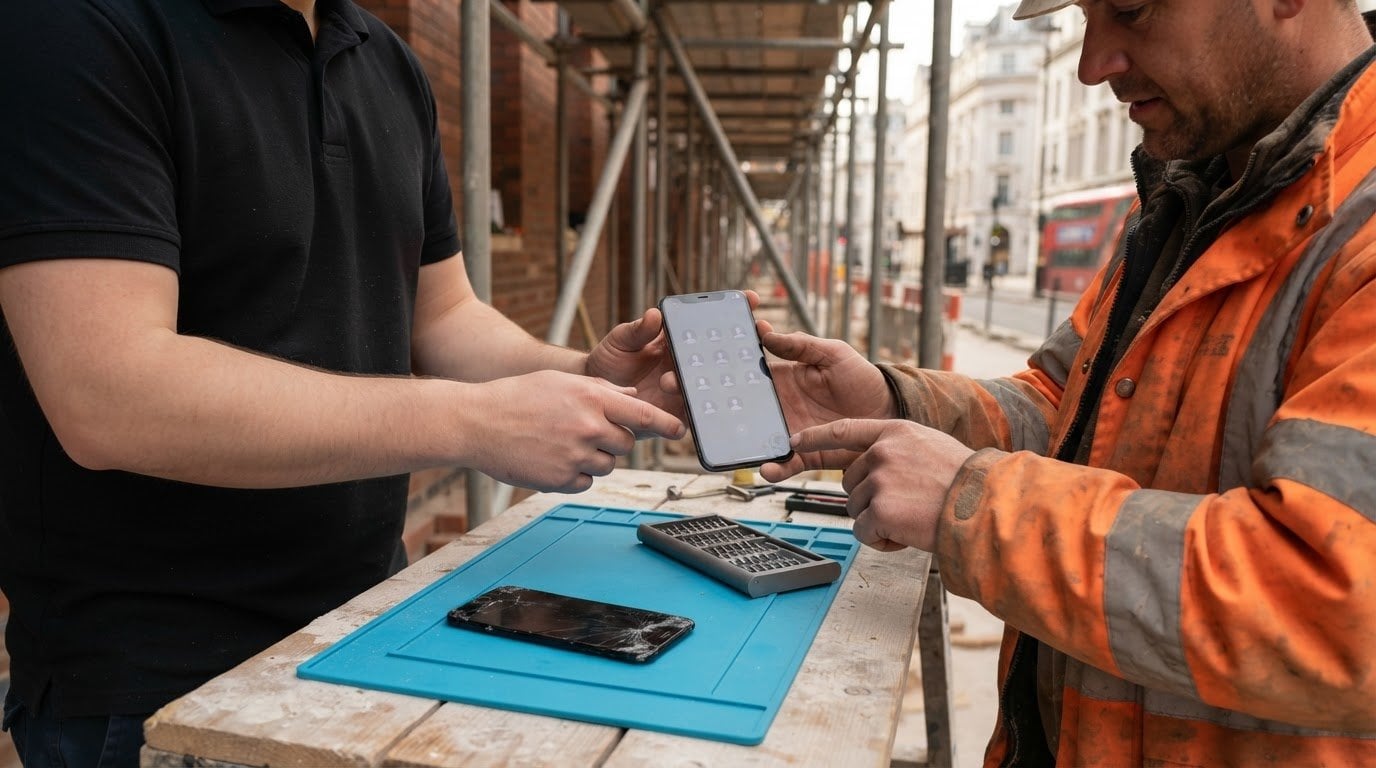
A screen replacement usually leaves your contacts intact. So, will you lose your contacts if you replace your screen? Usually, no: replacing an iPhone display doesn’t normally erase data stored on the phone. The greater risk comes from restoring the device, which can erase its contents, or moving to another iPhone without bringing your contacts across.
It’s understandable to worry when a damaged screen makes your phone feel out of reach. A standard screen repair normally leaves the phone’s storage untouched, but backing up a working iPhone first gives you an extra safeguard if another fault emerges.
This guide explains what a screen replacement changes, how restoring or replacing an iPhone can affect your contacts, and what to do if your screen still responds. You’ll also learn when a backup matters and how same-day, on-site iPhone screen repair in Central London can help get your device working again with less disruption.
Key Takeaways
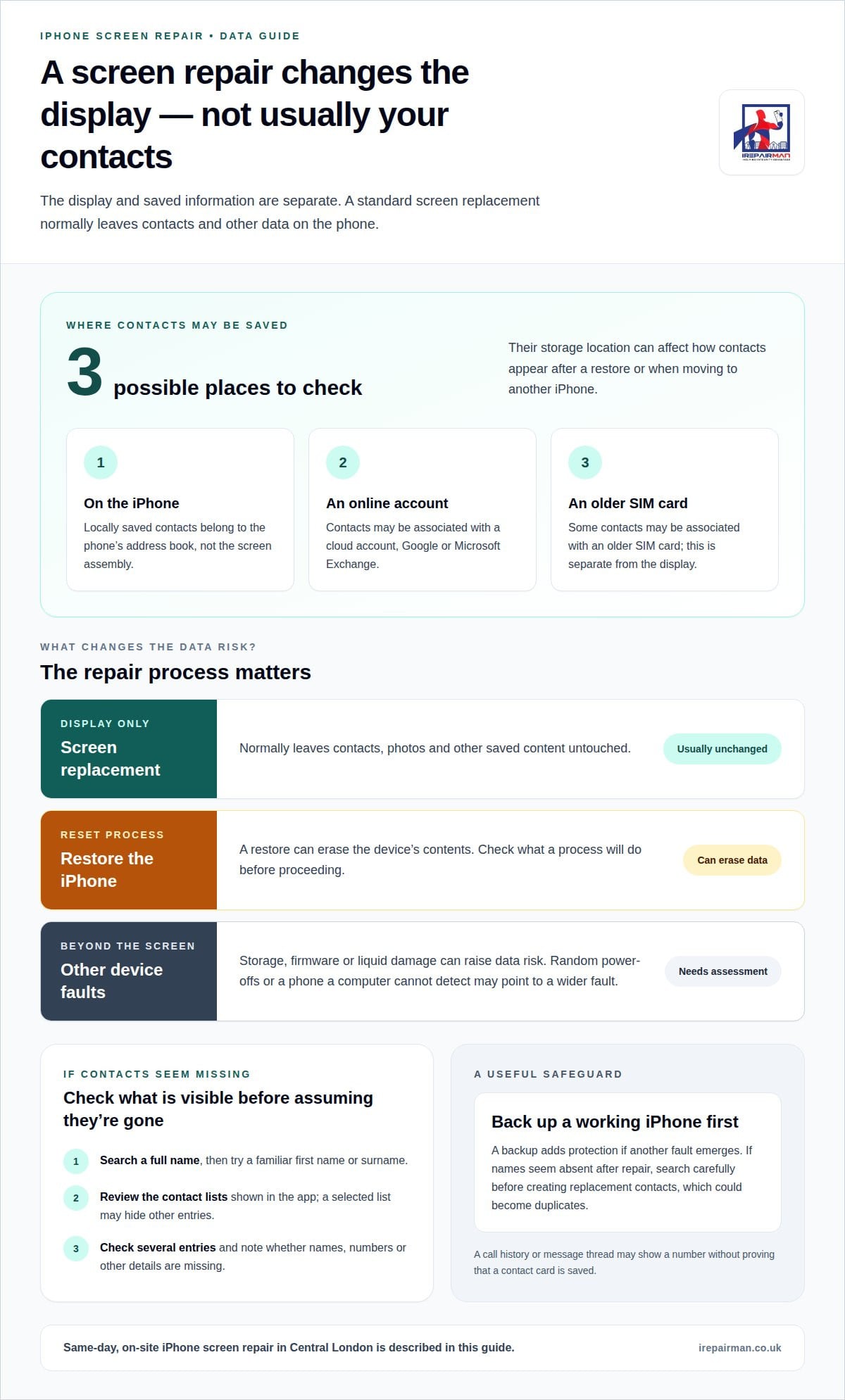
- A standard screen replacement usually leaves contacts and other data on the iPhone intact, as the display is separate from the phone’s storage.
- Restoring an iPhone can erase its contents, so understand whether a process will reset the device before proceeding.
- Where your contacts are saved affects how they appear after restoring or moving to another iPhone.
- A backup can help protect important information, especially if the screen still works or the phone has signs of other damage.
- If contacts go missing, recovery depends on whether they were backed up or synced to an account.
Will My Data Be Deleted After Screen Replacement?
A standard screen replacement normally leaves data on the phone, including contacts and photos. The risk is different if the device has damage beyond its display.
Data Retention During and After Repair
Data retention means information already on the phone remains there while its display is replaced. A screen repair normally leaves the storage and app data untouched, so contacts, photos, videos and messages usually remain available afterwards.
This matters because a broken display can make the whole device seem compromised. The repair changes the part you look at and touch, not the stored contents. WhatsApp history and app logins usually remain too. Work involving storage or software is different, since it may affect information beyond the display.
How Screen Replacement Affects Phone Data
The display and the phone’s data storage are separate, so replacing the screen doesn’t usually alter contacts, photos or other saved content. Photos are stored inside the phone, separately from the screen module.
For example, a cracked panel can stop you viewing a photo without deleting the file itself. Once the display works again, information stored on the phone usually remains accessible. The key distinction is between a display fault and damage to components that hold or manage data. A screen replacement addresses the former, not every possible fault inside the device.
Storage, Firmware and Liquid Damage Risks
Data risk rises when the fault involves storage, firmware or liquid damage rather than the screen alone. Storage work affects where information is kept. Firmware work concerns the software that helps the phone operate, while liquid can damage internal components beyond the display.
Signs of a wider fault include random power-offs or a phone that a computer cannot detect. Those symptoms can indicate greater data risk during repair. In rare cases, software issues may mean an iPhone needs a factory reset, which erases the device’s data. The phone’s overall condition, not just the visible crack, matters.
Contact Storage and Repair Shop Access
Contacts are part of the phone’s stored data, not the display assembly. A standard screen replacement doesn’t normally require opening the Contacts app or altering saved names. The screen shows information and registers touch; replacing it does not itself move contacts between storage locations.
For a repair limited to the display, access to contacts isn’t needed to change the screen. If the phone also has a fault affecting its logic board or software, the work may involve more than the display. This distinction helps explain why a diagnosis of internal damage can change both the repair approach and the data risk.
Will replacing a phone screen delete contacts?
Usually, a screen replacement doesn’t delete contacts. If names seem missing afterwards, first establish whether they’ve disappeared or simply aren’t showing in the Contacts app. That’s a more useful starting point than assuming the screen work removed them.
Open Contacts and search for someone by their full name, then try a familiar first name. Check whether the app displays all available contact lists, rather than just one selected list. A filtered view can make part of an address book seem absent, even though those entries remain available elsewhere on the phone.
Look for a pattern in what you can see. If one person is missing but other saved names remain, the issue may involve that entry rather than the whole address book. If every contact has vanished from the same view, check the display settings and lists before concluding that all the information has been erased.
- Search for a full name: try a surname or another detail if the first result doesn’t appear.
- Review the displayed lists: a selected list may hide contacts from other lists.
- Check several entries: compare familiar names from different parts of your address book.
- Look at the contact card: confirm whether a name appears without its saved number or details.
A contact card can also look incomplete without being deleted. For example, a saved name may appear while its telephone number or email address is missing. That points to a different problem from an empty Contacts app. Note what remains, as this can help narrow down whether entries or only some details are affected.
Don’t use call history as proof that a number is saved as a contact. A recent call can show a telephone number even when there’s no contact card for that person. Likewise, a message thread may display a number rather than a saved name. These screens offer clues, but they don’t establish that a contact entry is still present.
If the display works again after repair, check the Contacts app before changing any entries. Avoid creating replacement contacts straight away: duplicates may result if the original entries become visible again. First search carefully, review the displayed lists and note which names or details are genuinely absent. This helps distinguish an access problem from a missing contact record.
Are contacts stored on the SIM card, phone, or cloud account?
An iPhone contact can be associated with the phone, an online account or, in some cases, an older SIM card. These are different storage locations, not parts of the screen. Knowing where a name is stored helps explain why contacts may appear in one place but not another, or why a list differs after changing accounts.
Contacts saved locally belong to the iPhone’s address book on that device, not the screen assembly. Contacts associated with cloud storage, Google or Microsoft Exchange belong to the corresponding account. In the Contacts app, account lists can show whether an entry is linked to your main profile, another account or the device itself.
An iPhone doesn’t save new contacts directly to a SIM card. An older SIM may still contain names and numbers saved on a previous phone, which can be imported to an iPhone. SIM contacts are often basic entries, such as a name and telephone number, rather than fuller cards with email addresses, notes or several numbers.
Think of a contact card for Mum with a mobile number, home number and email address. If that card is associated with an online account, its details belong to that account. If it’s saved locally, the card belongs to that iPhone. If a SIM holds an older entry, it may contain only the number saved when that card was used.
- iPhone: locally saved contact cards belong to the device.
- Cloud account: entries can be associated with your online profile.
- Google or Exchange: contacts can belong to those separate accounts.
- SIM card: an older card may hold basic contact details for import.
Multiple accounts can make an address book look confusing. A colleague’s number might appear once under your cloud storage and again under Google, for example. These are separate entries, even if both show the same name. Reviewing the account labels in Contacts can help identify which list contains each version, rather than assuming every displayed name has a single source.
The SIM and display have separate jobs. A SIM connects the phone to mobile service and may carry older contact entries; the screen shows the iPhone’s interface. Removing the SIM won’t remove locally stored contact cards or entries associated with an online account. Likewise, changing a display doesn’t relocate contacts between the phone, an account and a SIM.
When checking a contact, open its card and note the account or list where it appears. That gives you a clearer picture of its storage location than the name alone. For example, two identical names may belong to different lists and contain different numbers. Identifying the right card can prevent confusion when managing contacts across an iPhone and other devices.
Can a repair shop access or erase my contacts during a screen repair
A screen replacement doesn’t normally require a technician to open your Contacts app or erase saved names. The work focuses on the display, not your address book. Access depends on the device’s state and information provided, such as whether someone shares its passcode. A routine repair and a factory reset are separate actions.
Your iPhone’s passcode is an important privacy control. Without it, someone handling a locked device can’t simply browse its apps as if it were unlocked. Sharing the passcode can allow access to information on the phone, including contacts and messages. Only provide access details when the repair genuinely requires them, and understand why they’re needed.
Signing out of iCloud, Apple ID and other accounts before sending an iPhone for repair is an additional security measure. It can reduce access to account-linked information during the handover. However, removing an account is different from deleting contacts stored on the phone. If you take this step, make sure you know your sign-in details so you can reconnect afterwards.
A SIM card is separate from the iPhone’s display and may hold older contacts. Remove it before handing over the device if you want to keep it with you. This also keeps the SIM and its information out of the repair process. Removing a SIM won’t erase contacts stored on the phone or synced with iCloud.
Before the appointment, protect what you can still access:
- Back up the iPhone: an iCloud backup gives you a separate recovery route.
- Review account access: consider signing out of iCloud, Apple ID and other accounts.
- Remove the SIM: keep the card and any contacts saved on it with you.
- Keep the passcode private: don’t share it unless access is genuinely needed.
If a screen is too damaged to use, you may not be able to complete all these steps. A phone that still responds can often be backed up before repair; one that won’t accept input may prevent that. Screen damage can limit your ability to prepare the device, but it doesn’t by itself mean the repairer needs to view or erase contacts.
Ask for a clear explanation before any work that involves resetting the iPhone or changing its software. A factory reset erases the device’s data, unlike a standard screen replacement. If a reset is proposed, consider whether you have a recent backup and can recover important two-factor authentication apps. These checks help protect both your contacts and account access.
Can contacts be recovered after a phone screen repair or data loss
Contacts can return after a repair or data loss if they were synced to an account or included in a backup. A standard screen repair usually doesn’t wipe an iPhone, so missing names may point to an account or sync setting instead. The recovery route depends on where the contacts were saved and whether the phone was reset.
Start by checking which account supplies the missing contacts. Open the Contacts app and review its lists, such as iCloud or Google. If the names are connected to iCloud, sign in with the same Apple account and enable Contacts syncing. For Google or Exchange contacts, reconnect the relevant account and enable contact syncing.
If a factory reset erased the iPhone, an iCloud backup can restore information saved in that backup. It must pre-date the reset and contain the contacts you want back. Restoring a backup differs from signing into an account: it brings back saved device information, while account syncing returns contacts linked to that account.
Before restoring, identify where the names were stored. For example, a contact synced to iCloud may return through iCloud, while a contact saved only on the iPhone needs a backup that contains it. Contacts on an older SIM may be imported from that card. Importing from a SIM won’t recover contacts that existed only on an erased device.
If the screen no longer responds, you may not be able to create a fresh backup before repair. That makes any existing iCloud backup or contact sync especially relevant. A phone that powers off randomly or isn’t detected by a computer may also have a wider fault, rather than a display-only problem. These signs help explain why recovery options differ between devices.
After screen repair, check the Contacts app and account lists before treating names as deleted. A disabled sync setting or a different signed-in account can make contacts disappear from view without removing their saved copies. If the iPhone was restored, note which backup or account was used. This helps establish whether another saved copy exists.
When no account sync or backup contains locally saved contacts, there may be no copy to restore through those routes. That’s why backing up a working iPhone before a reset matters. A damaged screen that still accepts input gives you an opportunity to create a backup; if it doesn’t, recovery depends on copies already saved elsewhere.
If screen damage is preventing access to your iPhone, arrange help with a damaged iPhone before attempting a reset.
IRepairMan London
iRepairMan London helps when a damaged screen makes your iPhone difficult to use or back up. A screen repair addresses the display, while missing contacts may relate to a reset, account sync or separate internal fault. Keeping these issues distinct helps clarify what the repair can address and what information may need recovery from an account or backup.
For repair work, iRepairMan London offers iPhone Screen Repair, iPhone Back Glass Repair, iPad Repairs and Samsung Phone Repair. Its encrypted, no-access data safety protocol is designed to protect customer data during repair handling. If your iPhone still responds, backing it up before repair can provide an additional recovery route.
If a damaged device needs attention, contact iRepairMan London to discuss the repair.
Choose your next step with confidence
Before arranging a repair, note what happened before the contacts disappeared. For example, record whether the iPhone was reset, restored from a backup or simply restarted after repair. Also note whether contacts are missing from the phone alone or from other devices using the same account. These details can help clarify whether the issue relates to the repair, an account or a restore.
If you’re wondering whether you’ll lose your contacts when replacing your screen, keep the repair and any reset as separate decisions. iRepairMan London offers iPhone Screen Repair, iPhone Back Glass Repair and iPad Repairs, with the right service depending on the damaged device and component.
Book a convenient repair appointment with iRepairMan London and let us know your location and preferred time. A clear next step can make getting your phone back in use feel more manageable.
Frequently Asked Questions
Will I Lose Everything If I Repair My iPhone Screen?
No, a screen repair normally leaves the iPhone’s data in place. It’s different from choosing “Erase All Content and Settings” or restoring the device, which can remove locally stored information. For example, replacing a cracked display shouldn’t itself remove saved notes or contacts. If the repair process involves a separate software reset, that reset, not the screen change, can erase data.
Should I back up my phone before the engineer arrives?
Yes, back up a working iPhone before the engineer arrives, if you can. An iCloud backup gives you a separate copy if another fault appears during diagnosis. Connect to Wi-Fi and power, then allow the backup to finish. If you’re at home or work in Central London, doing this before the appointment can avoid trying to complete it with a damaged screen.
What Happens If I Don’t Backup My Data?
Without a backup, information saved only on the iPhone may be difficult or impossible to restore if the device is erased or its storage is damaged. Contacts synced with iCloud or another account may still be available through that account. For example, a locally saved note may not return after a reset, while an account-synced contact can reappear when syncing is enabled.
What Is The Risk Of Losing Personal Data If You Have Your Phone Repaired?
For a screen-only repair, the usual data risk is low because the work doesn’t normally involve the phone’s storage. Risk rises if the iPhone also has liquid or motherboard damage, needs storage or firmware work, or requires a factory reset. A device that switches off unexpectedly may have a fault beyond its display, making existing backups and account copies more valuable.
How can I check whether my contacts are backed up before a screen repair?
On your iPhone, open Settings, tap your name, then iCloud and check whether Contacts syncing is enabled. You can also check whether the names appear on another device signed in to the same account. If you use Google or Exchange, review that account’s contact sync settings too. Seeing contacts on a second device is a useful check that they’re available beyond the iPhone.
How do I back up contacts on an iPhone before screen replacement?
To sync contacts with iCloud, open Settings, tap your name, choose iCloud, then switch on Contacts. For a broader device backup, go to Settings, your name, iCloud, iCloud Backup, then select “Back Up Now”. Keep the iPhone connected to Wi-Fi until it completes. If contacts use Google or Exchange, enable syncing for that account rather than relying on iCloud alone.
What should I do if the screen is broken and I cannot back up my contacts?
Don’t erase or restore the iPhone just to try to regain access. First consider whether contacts already sync with iCloud, Google or Exchange, or appear on another device. If the screen still responds partly, you may be able to start a backup before access worsens. If it’s completely unusable, recovery depends on copies already stored elsewhere and the phone’s condition.
Does replacing a screen affect contacts on the SIM card?
No, replacing the screen doesn’t change contacts stored on a SIM card. The SIM is separate from the display, so its saved information isn’t altered by a standard screen replacement. If you remove the card before repair, keep it somewhere safe; an older SIM may contain contacts that can be imported to an iPhone. Contacts saved only on the phone or an online account are separate.