

A phone repair doesn’t automatically give a technician access to your private files. Knowing how to ensure data privacy when repairing a phone starts with understanding that routine hardware repairs usually don’t require access to stored data, then preparing your device before handing it over.
It’s reasonable to protect your photos, messages and accounts. A repair may involve testing the device, and some checks may require a temporary unlock. Back up your files, remove your SIM and memory card, secure sensitive information and never share your Apple Account or Google password.
This guide explains when a repair may affect your data, how to protect files and photos, and what to consider when choosing an authorised technician. You’ll also learn how repair settings can limit access and what to review afterwards if your phone was unlocked during the work.
Key Takeaways
- Most routine hardware repairs don’t need access to your stored files, but testing can sometimes mean a phone is unlocked temporarily.
- A current backup helps protect your photos, messages and other important files before repair.
- Secure sensitive accounts and remove your SIM and memory card before handing over your device.
- Choose a repair technician with clear privacy practices, and never share your Apple Account or Google password for hardware work.
- Find out what to review after repair if your phone was unlocked during testing.
Will a repair wipe my phone or factory reset it?
A routine hardware repair doesn’t automatically wipe your phone or require a factory reset. The key question is whether the technician needs to unlock it to test a part or diagnose a fault.
According to the Information Commissioner’s Office, the UK Data Protection Act 2018 and UK GDPR apply to repair businesses handling personal data in the UK. These rules govern how businesses handle that information; they don’t mean every repair requires access to your files.
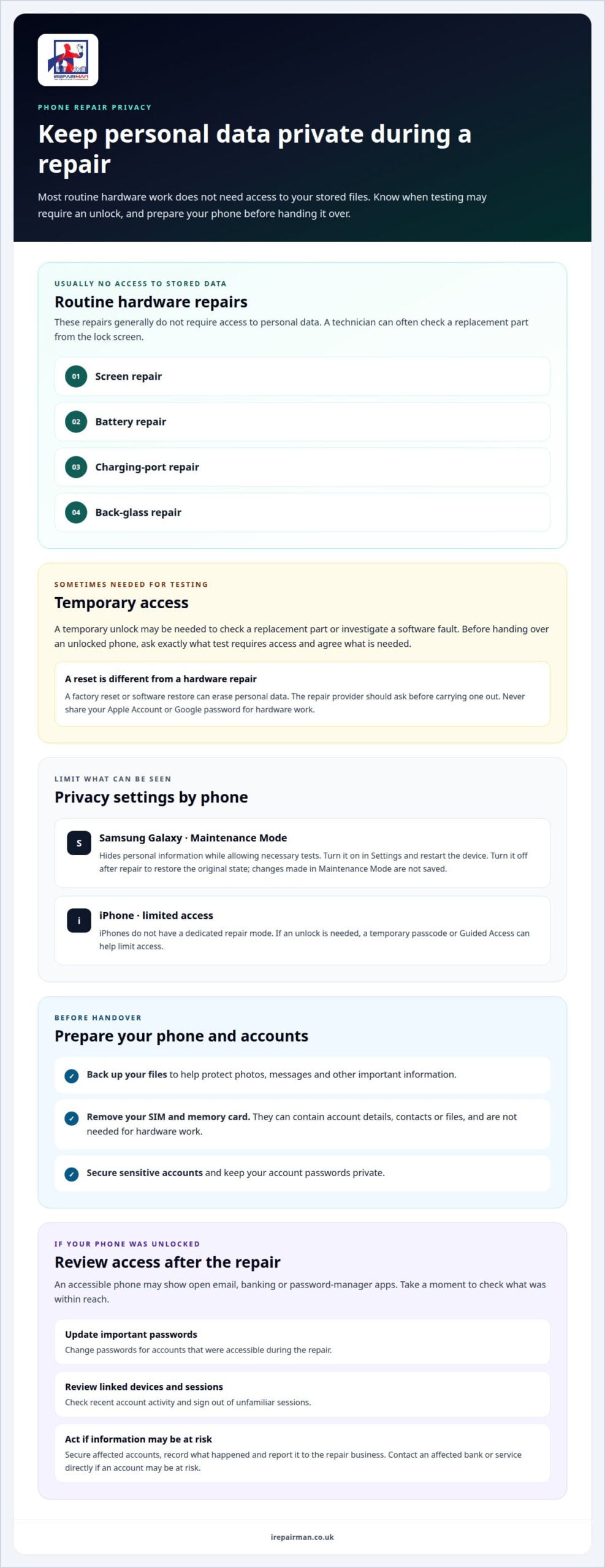
For screen, battery, charging-port and back-glass repairs, technicians generally don’t need access to stored data. Some tests may require a temporary unlock, particularly when checking a replacement part or investigating a software fault. Before handing over an unlocked phone, ask what testing requires access. Don’t share your Apple Account or Google password for hardware work.
A repair provider should ask before carrying out a factory reset or software restore, as either can erase personal data. If a manufacturer’s logic-board replacement is needed, the original data may become inaccessible because the phone’s storage is paired with that board. You can back up and reset a working phone before a hardware-only repair, but a reset deletes apps, photos, settings and other personal data.
Remove your SIM and SD or memory card before repair or collection. They can contain account details, contacts or files, and aren’t needed for hardware work. Keep them somewhere secure until your device is returned.
If personal data is lost, exposed or misused, secure affected accounts, change relevant passwords and review connected devices. Record what happened, report it to the repair business and contact any affected bank or service directly if an account may be at risk.
Post-repair passwords and account access
If you unlocked your phone during a repair, change important passwords and review the devices or sessions linked to your accounts. An accessible phone may expose open email, banking or password-manager apps. Check recent account activity, sign out of unfamiliar sessions and update passwords for accounts that were accessible.
Repairs that need no data access
Screen, battery, charging-port and back-glass repairs usually don’t require access to personal data. Technicians can often check a replacement part from the lock screen, without your passcode, helping keep photos, messages and apps private. A diagnostic issue or part test may still require temporary access, so agree in advance on the test and access needed.
Samsung Galaxy phones offer Maintenance Mode, which hides personal information during repair while allowing necessary tests. Turn it on in Settings and restart the device. Turning it off after repair restores the phone’s original state, without saving changes made in Maintenance Mode. iPhones don’t have a dedicated repair mode. A temporary passcode or Guided Access can limit access when an unlock is needed.
Choosing an authorised repair technician
For a Samsung phone, Samsung recommends verifying that the repair technician is authorised. Authorisation is a useful starting point, but doesn’t reveal everything about a repairer’s privacy practices. Look for clear information about responsibility, device handling and what happens if the agreed work changes.
To assess a UK repair shop’s privacy policy and reputation, read the policy for details on how personal data is handled, who is responsible and how to raise a concern. Then review customer feedback for specific examples of communication, device handling and repair follow-up.
A useful policy explains procedures in plain language. Check whether it covers how devices are recorded at handover, who may handle them and how information gathered during diagnosis is managed. These details help you understand the repairer’s approach before committing. If the wording is difficult to follow, ask for a plain-English explanation.
Look for consistent practices throughout the repair process. A written job record, for example, can identify the device, reported fault and agreed work. Clear records help distinguish authorised work from additional tasks. If a technician finds another fault, the repairer should explain the proposed change before proceeding, so you know what will be done.
Assess reputation through detailed evidence, not broad claims. Reviews describing the experience from booking through collection can show whether the shop kept customers informed and returned devices as agreed. Look for recurring comments about reliability, clear explanations or unresolved concerns. One review can’t establish a repairer’s usual standard, so consider the pattern across several accounts.
- Read the privacy policy: Look for clear information about data handling and responsibility.
- Review customer feedback: Consider detailed accounts of communication and follow-up.
- Look for clear records: The repair order should identify the device, reported fault and agreed work.
- Check authorisation: For Samsung repairs, verify the technician’s authorised status.
- Understand changes: Make sure proposed additions to the agreed repair are explained first.
A reputable service makes its process easy to understand and records what you have agreed. That gives you a practical basis for judging how the repair is managed, not just how confidently it is described.
What are the benefits of protecting data privacy?
Privacy controls reduce the personal information visible during diagnostics and help keep tests focused on the repair. A clear check-in also records the agreed work and whether access is needed.
Diagnostics can involve more than looking at a damaged screen. If a technician unlocks your phone, notifications, email previews, saved accounts or recent apps may be visible. Limiting access helps prevent unrelated personal details from appearing during the repair. Tests should relate to the fault, such as checking whether a replacement screen responds to touch.
At check-in, describe the fault and ask which tests require an unlocked device. Agree on any temporary access before work begins, and specify which features need testing. A display repair may require a touch check, for example, but unrelated messages and photos aren’t part of that test. Clear boundaries help you understand what the technician needs to do.
Keep software changes separate from hardware testing. Before handing over your phone, clarify whether you approve an update, restore or reset, and ask what each change affects. A software restore can erase personal data, so the technician should get your agreement first. Don’t treat an update prompt as automatic permission to change the device.
Samsung Maintenance Mode adds privacy protection on supported Samsung Galaxy devices. It hides personal information, including photos, messages and apps, while allowing necessary repairs and tests. To enable it, select Maintenance Mode in Settings, turn it on and restart the phone. After the repair, turning the mode off restores the original state; changes made during the repair aren’t saved.
Before check-in, review your device’s privacy settings and existing access protections. Samsung users can check in Settings whether Maintenance Mode is available. iPhone users can hide photos and lock the Hidden album with Face ID, but iPhones don’t have a dedicated repair mode. These settings help reduce exposure, though they don’t replace an agreed testing plan.
- Describe the fault: Give technicians the symptoms that need diagnosis.
- Agree on testing: Clarify which functions need checking and whether unlocking is necessary.
- Separate software work: Discuss updates, restores or resets before approving changes.
- Use available privacy settings: Enable Samsung Maintenance Mode on a supported Galaxy device.
- Keep a record: Note the agreed work and any temporary access arrangements.
These steps give you more visibility over diagnostics without preventing relevant tests. The technician can focus on the reported fault while you retain control over software changes and the personal information exposed during the repair.
Which files and photos should you back up before a professional phone repair?
Start with anything difficult to replace: photos, videos, contacts, messages and documents. A repair may not involve stored data, but a current backup gives you a copy if the phone needs a reset or its original data becomes inaccessible.
A professional service protects personal data by limiting access to what the repair and agreed tests require. An encrypted, no-access data safety protocol keeps repair work separate from personal files, so technicians don’t need to browse photos or accounts during routine hardware work.
Prioritise these files before handing over your phone:
- Photos and videos: Include camera-roll images, saved videos and items in albums you’ve created.
- Contacts and messages: Preserve names, numbers, text conversations and important attachments.
- Documents and downloads: Include work files, travel documents, scanned forms and files saved outside cloud storage.
- Notes and recordings: Check for personal notes, voice memos and other app-specific content.
- Account access: Confirm you can access essential accounts and recovery details from another device.
Don’t assume every app stores information in the same place. A photo may appear in your gallery but not in a cloud backup, while a note may exist only in its app. Review the backup settings for important apps, then check that the latest copy includes recent items.
For an iPhone, back up using iCloud or locally with Finder or iTunes. Check the backup’s completion status and date, then make sure it includes recent photos or messages. If the backup finished before your latest files were added, those newer items may be missing.
If a damaged screen still lets the phone turn on, you may be able to copy files to a computer using a USB cable. A broken display can prevent you from approving access or selecting files, so this depends on the phone remaining usable. If it won’t respond, don’t assume a cable transfer will work.
Keep the backup separate from the phone being repaired. Confirm that important photos appear in the backup account or on the computer, rather than relying on the damaged device as your only copy. Keep account recovery details accessible without storing passwords in an unprotected note on your phone.
Before check-in, tell the repair service which data must remain untouched and whether an agreed diagnostic test needs temporary access. This sets a clear boundary and helps you identify what to restore or verify when your phone is returned.
Customer concerns about data privacy
Handing over a phone can feel personal because it may contain private messages, family photos, work emails and banking notifications. The concern isn’t only whether files might be copied, but also whether a technician needs to see them to diagnose the fault.
Separate the repair risk from the access risk. A cracked screen may need a touch test, but that doesn’t require opening your email or photo gallery. If your phone must be unlocked, visible notifications or an open app could reveal personal details. Ask what the diagnostic test involves and agree which functions need checking.
Data protection becomes more practical when the repair process is transparent. At handover, the fault, agreed work and any required access should be clear. If the reported issue is a display fault, for example, record that testing relates to screen response. This gives you and the repairer a shared understanding of the task.
Control matters especially when you use a phone for work. It may contain client messages, meeting details or account alerts alongside personal photos. Tell the repairer what information is sensitive and whether the phone contains confidential work material. Don’t hand over account passwords; testing should be limited to the device function being checked.
For repairs that can be done nearby, staying within sight of the phone may ease concerns. An on-site repair can help keep the device in your sight if it can’t be reset. This can suit a straightforward screen or battery repair, although testing and a safe working space are still needed.
Before the appointment, decide what access you’ll allow and what you want explained. When the phone is returned, check its main functions and review account access if it was unlocked. If you notice unfamiliar activity, promptly change the affected password and contact the relevant service, such as your bank.
- Describe the fault clearly: Give the technician a specific example, such as a screen that doesn’t respond to touch.
- Set access limits: Agree which test needs an unlock, if any.
- Protect work information: Mention client messages or confidential files before the repair starts.
- Review after collection: Check device behaviour and account activity if the phone was unlocked.
Good data protection is visible in the handling process: the repairer explains why access is needed and keeps checks relevant to the fault. If your phone needs professional attention, arrange a phone repair with privacy questions included in the handover discussion.
IRepairMan London
iRepairMan London repairs phones and tablets when you need professional service and clear boundaries around personal data. Its encrypted, no-access data safety protocol is designed to keep repair work separate from your files. Explain any access limits at handover, and the repair team can keep agreed checks focused on the fault.
Services include iPhone screen and back-glass repairs, iPad repairs and Samsung phone repairs. Whether you’re arranging a repair for a personal device or a work phone, prepare a backup and keep account passwords private.
For a phone or tablet repair and a clear conversation about data privacy, contact iRepairMan London.
Make your next repair decision with confidence
Knowing how to ensure data privacy when repairing a phone means treating access as part of the repair plan, not an afterthought. Before booking, decide what information is sensitive and what testing you’re comfortable approving. Raise those boundaries when arranging the work so expectations are clear from the start.
For professional device repairs, iRepairMan London offers iPhone Screen Repair, iPhone Back Glass Repair and iPad Repairs. You can explain your repair needs and discuss data privacy as part of the same conversation, without sharing account passwords.
To book a same-day on-site repair in Central London, contact iRepairMan London to discuss your repair and privacy requirements and arrange a convenient appointment, subject to availability.
Frequently Asked Questions
Does a phone repair touch your data?
It depends on the fault and tests needed, not simply on the word “repair”. A technician replacing a physical part may not need to inspect stored files, while troubleshooting an app crash could involve software settings. Ask whether the diagnosis is hardware-only or includes software checks. This helps you understand which parts of the device may be involved before work begins.
Do I need to give my passcode for a screen or battery repair?
Usually, a screen or battery repair can proceed without giving the technician your everyday passcode. If a test requires an unlocked screen, agree on a limited way to complete it rather than sharing broader account credentials. Ask the technician to explain the test and tell you when access is no longer needed. You can then decide whether the access is appropriate.
How does prioritising customer data privacy build trust?
Privacy builds trust when the repairer’s actions match what you agreed. A clear handover record can note the reported fault, approved tests and your instructions, giving both parties a reference if questions arise. This is useful for a business phone containing client correspondence, as the organisation can set handling expectations before the repair begins.
Which files and photos should I back up before a professional phone repair?
Prioritise files stored only on the device or difficult to recreate, such as original photos, voice recordings, travel documents and work attachments. Check whether shared albums or cloud-based notes are accessible from another device. A backup is useful only if it contains the items you need, so review its contents rather than relying solely on a completion notification.
How can a repair technician advise you on Repair Mode on an iPhone or Android phone?
A technician can identify the privacy features available for your phone model and explain whether they suit the planned tests. Android options differ by manufacturer and model; Samsung Galaxy phones have Maintenance Mode, while iPhones have no dedicated repair mode. Ask for guidance based on your device model and operating system, since menu names and available settings can vary.
Should a repair provider recommend a factory reset, and when is it necessary?
A reset may be considered when a fault involves software behaviour that can’t be assessed through hardware checks alone. It shouldn’t be the default for every repair. Ask the provider what problem the reset is meant to address, what alternatives were considered and what information would be erased. Decide after hearing the explanation, not as a routine condition of repair.
Is it safe to give a repair technician my phone passcode?
A passcode lets someone use the device under your profile, so treat it as sensitive. It’s different from an Apple Account or Google password, which shouldn’t be needed for ordinary hardware work. If access is proposed, ask what the technician will do while the phone is unlocked and whether you can be present for the test.
What are the risks of an unauthorised phone repair, including data access or copying?
An unauthorised repair doesn’t prove that anyone will access or copy your files. The practical concern is whether the repairer has clear procedures, identifiable responsibility and a record of the work. Without those safeguards, it may be harder to understand who handled the device or resolve a concern. Choose a service that explains its process and provides a clear repair record.