
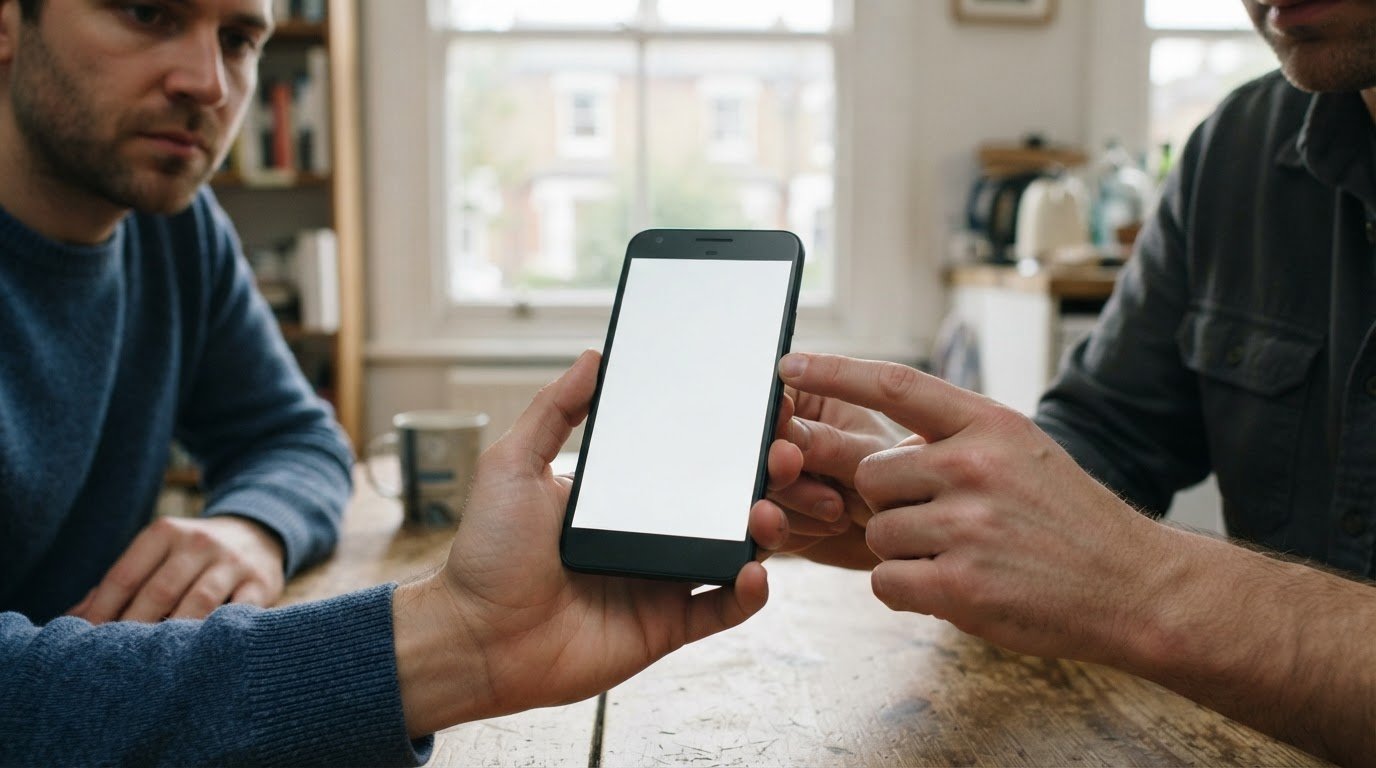
A completely white screen doesn’t automatically mean your phone’s display is beyond repair. If your phone screen is completely white, a temporary software issue may be responsible, but a cracked screen, liquid exposure or damaged internal connection can also cause the display to fail.
A white screen is unsettling, especially when you rely on your phone for work, travel or staying in touch. The key distinction is whether a restart clears the fault or the display stays blank, shows white lines or has persistent spots.
This guide explains what a white Android display may indicate, how physical damage and liquid exposure can affect the screen, and which signs suggest a hardware fault. You’ll also learn when a professional assessment is the sensible next step, so you can understand the problem before arranging a repair.
Key Takeaways
- A white display on a Galaxy phone can have software or hardware causes; the symptoms and when the fault began help narrow them down.
- Cracks, water exposure and loose internal connections can affect the display, even when the damage is not obvious at first glance.
- A professional diagnosis can distinguish a screen fault from a software issue and help identify the appropriate repair.
- Persistent blankness, white lines or spots after a restart are signs that a technician should assess the phone.
- For an iPhone, a technician can assess the screen and its connections before recommending screen repair or replacement.
What Does a White Screen on Android Actually Mean?
A white Android display can point to a software fault or a problem with the screen hardware. On a Samsung Galaxy, when the fault began and whether there was a recent impact or software change can help narrow down the cause.
-
How a professional identifies common white-screen causes
Note when the white display began and tell the technician about any recent drops, moisture or software changes. A Galaxy phone that turns white after an update may have a software problem; a blank display after an impact can indicate damage to the screen or its internal connection. Avoid pressing the screen repeatedly, as pressure won’t identify the fault and may worsen existing damage.
-
How a technician force restarts a phone with a white screen
Ask the technician to try a force restart before opening the device. On a Samsung Galaxy, a soft reset can involve holding Power and Volume Down for about 10 seconds. If the screen remains white after restarting, that result helps the technician decide whether further software or hardware diagnosis is needed. A restart doesn’t repair a cracked display or a damaged connector.
- Describe any software update or modification that preceded the fault. An interrupted update can prevent the operating system from loading normally. Android users may call unofficial system changes “jailbreaking”, but rooting or installing unofficial firmware is more accurate terminology for Android. These changes can affect startup, so include them in the fault history rather than attempting another update.
- Have a technician assess the display, its internal connections and the phone’s response to a restart. This can help distinguish a screen fault from a software problem. A professional can inspect for visible cracks, check whether the phone responds and assess the screen connection before recommending a repair. Replacing the screen without identifying the cause may not resolve a software fault.
- Ask how the fault relates to your phone’s warranty and purchase. A white screen isn’t automatically covered: the warranty terms and cause of the fault matter. Consumer rights in the UK depend on the circumstances, including the nature of the fault and the purchase. A technician can diagnose the screen, but coverage is determined by the relevant warranty terms or consumer rights process.
Ask about your data before any reset or repair. If only the display has failed, data may still be stored on the phone, but access depends on whether the device responds and can be unlocked. A factory reset erases locally stored data, so don’t authorise one without considering your backup and recovery needs. Tell the technician if the device holds important files.
Physical damage, water exposure and loose connectors
Cracks, liquid exposure and damaged screen connections can all leave an Android display white. How the fault began, such as after a drop or spill, gives the technician useful clues.
-
How a technician checks for signs of physical or water damage
Tell the technician about any drop, impact or liquid contact before the screen turned white. They can inspect the display for cracks or shattered areas, then consider whether the timing suggests possible water damage. A fault that began after an impact has a distinct history from one that appeared spontaneously; in cases where device damage is caused by a serious road accident or mishap involving injuries, firms such as the Law Offices of Michael D. Payne guide people through the wider personal injury claims process.
-
How a technician checks for a loose or damaged screen connection
Describe whether the display changes when the phone is moved, and have the technician examine the screen connection. A loose or broken cable between an iPhone’s motherboard and screen is one possible hardware cause. Assessing the connection and display together helps avoid assuming that a white screen always means the panel itself has failed.
- Point out persistent white spots or lines, even if the rest of the display still shows an image. These marks can help the technician assess whether the display or its connector is damaged. If they remain after a restart, professional repair is warranted. Note where they appear and whether they began after a particular impact or water exposure.
- Explain what happened around any water exposure, including whether the screen changed immediately or later. Water can affect internal components, so a phone that looks intact outside may still need assessment. A working button or uncracked outer glass doesn’t prove that the display connection is undamaged. The technician uses the full symptom history to guide the inspection.
- Share the sequence of symptoms before agreeing to software troubleshooting. A factory reset erases locally stored data, and it won’t reconnect a loose cable or repair a cracked display. If the white screen followed a drop, water exposure or visible screen damage, tell the technician before considering a reset. That detail can keep the diagnosis focused on the likely physical cause.
Consider these signs together rather than in isolation. A cracked or shattered screen, water exposure, or persistent white spots or lines after restarting can indicate a damaged display or connector and warrant professional repair. When describing the fault, say which sign you noticed and whether the white display followed the crack, exposure or restart. Stick to what you observed, and mention every sign if more than one occurred. This gives the repair professional a clearer picture to consider alongside the display and connector. Don’t dismiss a persistent spot or line just because the rest of the screen remains visible. Likewise, mention water exposure even if there is no visible crack. These observations can direct attention to possible display or connector damage without assuming which component is responsible. If any of these signs are present, arrange a professional assessment.
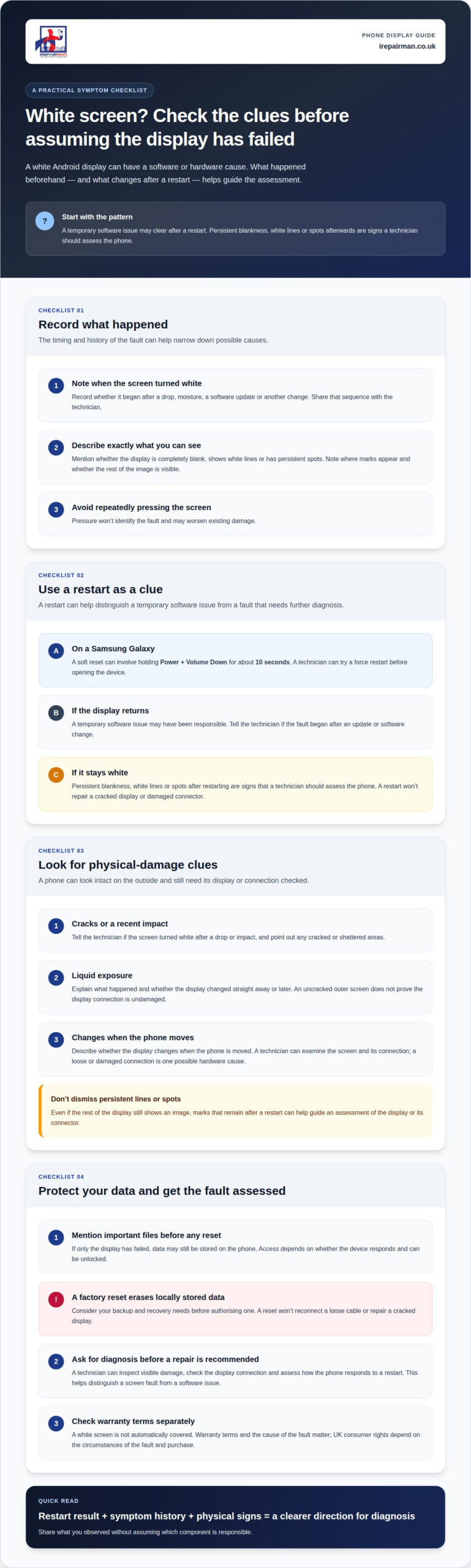
What a completely white Android screen can indicate
A temporary software issue can cause a smartphone screen to turn white. A technician can compare when the fault began with recent app changes, storage pressure and system updates.
- Tell the technician what happened before the screen turned white. Mention whether the fault followed an Android update, a newly installed app or a change to system software. For example, a white screen that appears immediately after an update calls for a different diagnostic path from one that begins during normal use. This timeline helps narrow down the likely cause without assuming the display itself has failed.
- Ask whether Safe Mode can help isolate a third-party app. Safe Mode temporarily disables third-party applications, allowing the technician to assess whether an installed app may be causing the problem. If the display behaves differently in Safe Mode, that offers a useful clue about software behaviour. It doesn’t prove which app is responsible, so the technician can consider the result alongside the phone’s update and fault history.
- Have the technician consider available storage and recent system activity. Android uses temporary system resources, and keeping at least 10-15% of a phone’s storage free is recommended to help the system manage them. A device with very little free space may struggle during updates or routine tasks. The technician can assess whether storage pressure matches the timing of the white display, rather than treating it as proof of a screen fault.
- Use a restart to observe the fault, not as a complete diagnosis. If the screen returns to normal after restarting, the fault may have been temporary. If it turns white again during startup or stays white while the phone responds to sounds or buttons, the technician has more evidence to assess. Note whether the display changes between startup and the lock screen, as this behaviour can help distinguish a software problem from a display issue.
- Ask about recovery options before authorising a reset. Recovery Mode may be considered during software diagnosis, but a factory reset erases locally stored data. Back up important files beforehand if access is possible. A reset isn’t a step to take casually: the technician should weigh the update history, app behaviour, available storage and your data needs before recommending it. If the white screen persists after software checks, the diagnosis should also consider a hardware fault.
During a Safe Mode check, record what the screen does, including whether it is white from the start or changes while the phone is in use. This links the app question to the observed symptom rather than a guess based only on installed apps. Safe Mode can help assess whether a third-party app is causing an Android white screen because it temporarily disables third-party applications. The result won’t identify a particular app by itself, so share what you observed with the technician as one part of the diagnosis.
When to seek professional phone repair
Arrange a professional assessment if a restart doesn’t restore a usable display or the fault keeps returning. These steps can help you decide what to report and what to expect.
- Book an assessment if the screen stays white after restarting. A display that remains blank through startup needs more than repeated restarts. Tell the technician whether the phone still rings, vibrates or responds to a button press. These signs show whether the device is otherwise active, even when you can’t see the screen.
- Seek help when the fault prevents ordinary phone use. If you can’t read messages, answer calls or enter your passcode, explain which tasks have stopped working. For example, a business user unable to approve a work sign-in may face a different disruption from someone who can still make calls. This context helps the technician understand the urgency and assess the display’s practical impact.
- Tell the technician about liquid exposure before charging the phone. Describe when the exposure happened and whether the screen changed immediately or later. Don’t assume that an apparently normal casing means the display and internal parts escaped damage. A clear timeline helps the technician assess whether the fault may involve hardware, rather than treating every white screen as a software problem.
- Share the device’s recent history when arranging an assessment. Note the phone model, when the white display began and whether an update or impact came first. Include whether touch input still works and whether the screen changes during startup. These details give the technician a focused starting point, rather than relying on the blank display alone to identify the fault.
- Ask for a diagnosis before approving a repair. A technician can assess the display, its connection and the phone’s response, then explain which repair fits the fault. Screen replacement may address a damaged display, while a software issue needs a different solution. Ask what the assessment found and what the proposed work covers, so you understand the next step before the phone is opened or reset.
- Discuss data access before the device is handled. Explain whether important files are stored locally and whether you have a current backup. A completely white display can prevent you from navigating the phone, even if it remains powered on. Agree how the repair will proceed if the technician needs access, and ask what happens if the screen remains unusable during diagnosis.
How do I fix a white screen on an iPhone?
An iPhone screen can turn white after a failed iOS update, a display fault or an internal connection problem. A technician can diagnose the issue before recommending a repair or software recovery.
- Describe when the white screen first appeared. Tell the technician whether it followed an iOS update, a drop or another change. An update that failed to complete can prevent an iPhone from starting normally. Also mention whether the phone rings, vibrates or responds to buttons, as these details help distinguish a display problem from a phone that won’t start.
- Ask for a model-appropriate force restart before recovery steps. A force restart on an iPhone doesn’t erase user data. The button combination varies by iPhone model, so check the instructions for your device before restarting it. A technician can choose the right sequence for the device, then check whether the display returns.
- Check whether magnification is making the screen look white. If an iPhone display looks enlarged rather than blank, hold three fingers together and double-tap the screen to return to the normal view. This accessibility shortcut can help when the image is zoomed in. If the display remains fully white or shows persistent lines after the view changes, it needs further diagnosis.
- Have the technician assess the screen and its connection. A loose or broken cable between an iPhone’s motherboard and screen can cause a white display. The technician can assess whether the symptoms point to the screen, its connection or software, then recommend the relevant repair. If a force restart doesn’t restore the image, that is useful diagnostic information, not a reason to keep repeating it.
- Discuss Recovery Mode or DFU Mode before any restore. Restoring an iPhone through Recovery Mode is a factory reset and erases all phone data. DFU Mode instructions use the Side and Volume Down buttons for iPhone 7 and later; the relevant two buttons are held for 10 seconds. A restore may fail with error 4013, so the technician should consider the data and the fault before proceeding.
- Agree the repair plan after diagnosis. If the technician identifies a damaged screen, arrange iPhone screen repair once you understand the proposed work. If software recovery is considered instead, discuss its data-erasing effect first. For a white screen that continues after a restart, a professional assessment helps establish whether repair or software troubleshooting fits the symptoms.
IRepairMan London
iRepairMan London provides professional phone and tablet repairs for white-screen faults. A technician can assess your device and explain the repair options, helping you choose a practical next step.
For display faults, iRepairMan London offers iPhone Screen Repair and iPad Repairs. It also provides iPhone Back Glass Repair and Business • Corporate • B2B Phone Repair HUB services.
To discuss your device or arrange an assessment, contact iRepairMan London.
Choose your next step with confidence
If your phone screen is completely white, consider what you need from the device while it’s being assessed. You may need access to work messages, travel details or school communications. Making a simple plan for those essentials can reduce disruption while you arrange an on-site assessment.
iRepairMan London repairs iPhone screens and back glass, as well as iPads. The right service depends on your device and the technician’s assessment. Discuss the fault and proposed work before deciding how to proceed. Clear information about the problem helps get that conversation started.
Arrange an on-site assessment in Central London when you’re ready. Contact iRepairMan London to book a repair and discuss what’s happening with your device. Same-day appointments may be available, helping you get a practical repair plan with less disruption.
Frequently Asked Questions
Why is my phone screen completely white?
A white appearance can stem from a fault in the image being shown or in the display presenting it. A technician can compare a screenshot saved by the phone with what appears on its screen. If the saved image looks normal on another device, that may help narrow down where the fault lies, although it doesn’t identify the exact failed part by itself.
Can a software update or app cause a phone screen to turn white?
Yes, an update or app can be involved. If the phone still responds, a technician may use Safe Mode to assess whether third-party apps affect the display. A change in behaviour can help narrow down the investigation, but won’t identify the specific app by itself. Share the phone model and any recent software changes to guide the next diagnostic step.
How can a technician tell if a white phone screen is caused by a damaged display or loose cable?
A technician can inspect the display connection and, where appropriate for the model, compare its behaviour using a known-working screen. This can help assess whether the display panel or its connection is involved. Ask what the test showed and whether the proposed repair addresses the identified fault. That explanation helps you understand why a particular part or repair is recommended.
When should I stop troubleshooting and take a phone to a repair shop?
Stop once you can’t use the phone reliably or further checks would require navigating a screen you can’t see. In Central London, you don’t necessarily need to travel to a repair shop: iRepairMan London can arrange an on-site phone repair at a suitable location, such as your home or workplace. Tell the technician where the phone can be assessed and which functions you need restored first.