

Repair is often the practical choice when a school tablet has one clear fault, works well otherwise and the required part is available. Emergency tablet repair for education sector teams can limit disruption, but replacement may make more sense if faults keep returning or repair is not practical.
A cracked screen or charging fault can take a tablet out of lessons when it is needed most. Consider more than the fault itself: assess the device’s age and condition, how soon it is needed, whether the part is available and how repairs will affect teaching. For laptops, use the same decision points and arrange repair support separately.
This guide explains how to assess a tablet, prepare it for repair and compare repair with replacement. It also covers factors that affect turnaround, why parts availability matters and how schools can plan repairs around the timetable. Use these steps to choose a practical option and plan what happens next.
Key Takeaways
- Compare the tablet’s fault, overall condition and replacement-part availability before deciding whether repair or replacement is the practical choice.
- Organise repairs around teaching needs by recording the device details, fault symptoms and operational priority before arranging collection or support.
- Prepare devices for repair by following school data procedures and limiting access to pupil and staff information.
- Set out safeguarding expectations and data-handling responsibilities before an external repair is arranged.
- Use the school’s existing contract and procurement process to manage urgent repairs, and keep a clear record of the decision.
Repair turnaround and replacement parts
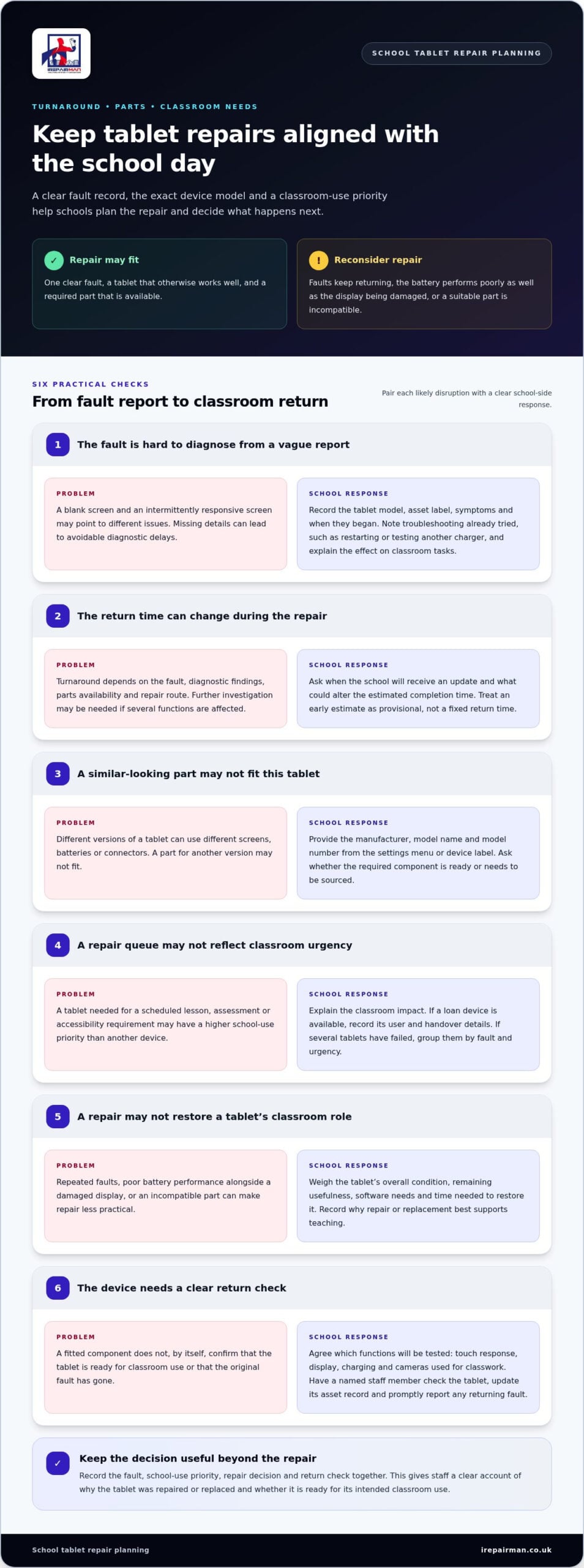
- Record the fault before arranging a repair. Note the tablet model, asset label, symptoms and when they began. For example, distinguish a screen that responds intermittently from one that stays blank. Include any troubleshooting already tried, such as restarting the device or testing another charger. Clear notes help the technician identify the likely repair and avoid unnecessary diagnostic delays. Explain whether the fault affects one user or several classroom tasks so staff can describe its practical impact.
- Ask what the repair process depends on. Emergency tablet repair for the education sector depends on the fault, diagnostic findings, parts availability and repair route. A cracked screen may need a different component from a tablet that will not charge. If several functions are affected, further investigation may be needed before the right part can be identified. Ask when you will receive an update and what could change the estimated completion time. This helps the school plan around lessons without treating an early estimate as a fixed return time.
- Match the replacement part to the exact device. Record the manufacturer, model name and model number from the settings menu or device label. Similar-looking tablets can use different screens, batteries or connectors, so a part for one version may not fit another. Ask whether the component is ready or needs to be sourced, as this can affect when the tablet can return. Keep model details with the repair request to prevent confusion between devices in a school fleet.
- Set a school-use priority, not just a repair queue. Tell the repair coordinator whether the tablet is needed for a scheduled lesson, assessment or accessibility requirement. Identify a suitable loan device if available, and record its user and handover details. If several devices have failed, group them by fault and urgency. This helps the school prioritise the restoration of essential tasks. For emergency tablet repair in the education sector, explaining the classroom impact links repair planning to the school timetable.
- Compare repair with replacement using the device’s condition. Repair may suit a tablet with a single screen fault that otherwise works well. Repeated faults, poor battery performance alongside a damaged display or an incompatible part may favour replacement. Consider the device’s remaining usefulness, software needs and the time required to restore it. Record why the chosen option best supports teaching and whether repair would return the tablet to its intended classroom role.
- Agree the return checks before the repair starts. Ask which functions will be tested after the component is fitted. These might include touch response, display, charging and cameras used for classwork. Arrange for a named staff member to check the device on return, then update its asset record. If the original fault remains, report the same symptoms promptly with the repair details. This final check helps staff decide whether the tablet is ready for classroom use.
School tablet repairs
Clarify device priorities, information controls and purchasing procedures before arranging an external repair. Use the steps below to keep decisions clear when a tablet interrupts teaching.
-
Check safeguarding and data protection requirements
Start with the school’s safeguarding and data-protection procedures, then identify who can approve a technician’s access. Record whether devices contain pupil records, staff accounts, saved passwords or classroom work. A shared classroom tablet, for example, may hold account details even when pupils use separate profiles. Check the school’s requirements for technician identity, supervised access, device handover and incident reporting. Share only the information needed to diagnose the fault, and leave approval with the named school lead. Document arrangements for each repair route rather than assuming a standard process meets the school’s controls.
-
Arrange repairs through procurement or existing contracts
Check the school’s current repair contract, purchasing policy and delegated approval process before placing an urgent request. Identify who can authorise the work, which supplier routes the agreement permits, and what records procurement needs. If a contract covers tablets but not another device category, keep the requests separate and follow the relevant route. For an urgent failure during an assessment period, record the educational impact, the fault, the proposed repair and the approval decision. Use the contract’s stated process for collection, updates and return, rather than assuming emergency status removes normal approval steps. Keep the order, correspondence and completion record together for the school’s audit trail.
-
Protect data before sending devices
Ask the school’s IT lead to prepare each device before collection or handover. If the tablet works, back up school-approved files, sign out of accounts where policy allows and remove it from classroom use. Don’t share passcodes in a general email or attach pupil information to a repair request. If a screen fault prevents access, record that limitation and agree a secure handling plan with the authorised school contact. Label the device with its asset reference and fault, not a pupil’s name. On return, have an authorised staff member check it, confirm expected access controls remain in place and update the asset record.
How should schools protect pupil and staff data before sending tablets for repair?
- Ask the school’s IT lead to classify the information on the tablet. Check for pupil work, staff email, saved passwords, photographs and learning-platform accounts. A shared classroom iPad may contain several users’ files, even when pupils have separate profiles. Note what could remain accessible from the lock screen or an open app. Use the school’s data-handling procedure to decide what to remove, retain or protect before dispatch.
- Back up approved school files to a controlled location. Follow the school’s usual backup process rather than copying pupil work to a personal laptop or memory stick. An authorised staff member, for example, can check that lesson documents are saved in the school’s approved system. Record whether the backup completed and avoid making extra copies of sensitive files. If a fault prevents access, tell the IT lead.
- Reduce access to accounts and saved credentials. If the device works and school policy allows, sign out of email, learning platforms and personal accounts. Remove saved passwords only through approved settings, and don’t include passcodes in the repair description. If testing requires device access, agree a controlled method with the school’s authorised contact. Keep credentials separate from the tablet and collection paperwork.
- Choose the least disruptive data-clearing option. Don’t automatically factory-reset a tablet: this may erase teaching files or complicate diagnosis. First confirm whether a secure backup exists and whether the fault can be assessed without deleting content. If the screen is broken or the tablet will not start, avoid repeated login attempts. Tell the IT lead what remains on the device and follow their handling decision.
- Prepare a minimal handover record. Use the school asset number, device model and fault description, not a pupil’s name or a list of stored files. For example, write “tablet asset 24, touch input unresponsive” rather than identifying its usual pupil. Record who authorised the handover, who packed the device and its collection status. Keep the record with the school’s repair file, not inside an unsecured case.
- Check the tablet before returning it to class. Have an authorised staff member confirm that it starts, connects to required school services and opens the expected user profile. Check that staff or pupil accounts have not been left signed in from repair testing. Update the asset record with the return date and any agreed settings changes. If access behaves differently, keep the tablet out of shared use until the IT lead reviews it.
What UK safeguarding and data protection requirements apply to outsourced school tablet repairs?
- Identify the school’s data-protection lead before booking. Ask them to review the repair route, device contents and proposed technician access. A tablet used for classroom registers may hold pupil names, attendance details and staff account information. Treat repair handling as part of the school’s data-protection process, not simply a technical handover. Record who approved the arrangements and which school procedure applies.
- Set clear limits on access to information. Describe the fault without sharing pupil records, passwords or screenshots containing personal details. “Touchscreen unresponsive,” for example, gives useful diagnostic context without naming the pupil who used the device. Agree whether testing can happen without opening school accounts or files. If access is needed to reproduce the fault, define the permitted action and the authorised school contact.
- Agree safeguards with the repair provider in writing. Document how the tablet will be collected, stored, handled and returned. Specify who can access it, how the school will receive updates and how any suspected information exposure will be reported. Make the arrangements specific to the repair rather than relying on a general privacy statement. Keep the written record with the school’s procurement and device files.
- Check safeguarding arrangements for any school visit. If a technician attends the school, agree the location, arrival contact and permitted areas. Keep the repair in an authorised space, such as the IT office, rather than an occupied classroom. A named staff member should manage the handover and remain responsible for access to the school. Record the visit and device transfer through the school’s usual visitor process.
- Keep a clear record of the device and its custody. Note the asset reference, model, reported fault, handover time and responsible staff member. Use the asset label, not a pupil’s name, on collection paperwork. Record each transfer between school staff and the repair contact, then retain confirmation of return. This makes it easier to trace the tablet if its location or handling is later questioned.
- Prepare for a possible data incident before sending the tablet. Agree which school contact receives an urgent report and what details they need, such as the device reference, event and time. If a tablet goes missing during collection, staff can promptly follow the school’s incident process. Decide in advance who handles reports rather than waiting until the repair is complete. On return, check access controls and note any changes made during testing.
For an individual under 13 years old, the healthcare professional should speak to the local safeguarding lead and follow local safeguarding policy. Keep that instruction within its stated context when documenting repair arrangements; a repair handover does not replace the school’s safeguarding process.
If a repair raises a safeguarding concern about a pupil, follow the school’s established process and record the appropriate contact and action without adding unnecessary personal details to the repair record. Leave access decisions with the authorised school contact, and ensure the person receiving the device knows how to escalate an unexpected disclosure or request.
How can schools arrange emergency repairs under public-sector procurement rules or existing contracts?
- Check the current contract before raising an urgent order. Find the agreement covering tablets, its supplier arrangements and any emergency process. Confirm that the fault and device type fall within its scope. A contract for tablet screen repairs, for example, may not cover another device category. Ask the contract owner or procurement lead to identify the correct route. Record the urgency, but follow the school’s approval process.
- Confirm who can approve the repair. Follow the school’s delegated authority and purchasing procedure, including any required sign-off. The person reporting a failed classroom tablet may not be authorised to place an order. Give the approver the asset reference, fault description, educational impact and proposed repair route. This provides practical information for a timely, documented decision.
- Document why the need is urgent. Describe the effect on teaching, assessment or access to learning materials. For instance, explain if a teacher cannot use a damaged tablet to deliver a planned lesson. Note whether a spare can cover the task and when the affected tablet is needed again. Keep this explanation with the request so procurement understands the operational reason for its priority.
- Use the purchasing route permitted by the agreement. Check the contract’s instructions for orders, authorisations, collection and repair updates. If the agreement requires a purchase order, raise it through the school’s usual system before work begins. Don’t assume an informal email or phone request meets the contract terms. If no existing agreement applies, ask the procurement lead to direct the request through the school’s approved process.
- Keep a complete record of the decision and repair. Save the approval, order, device reference, reported fault and supplier correspondence together. When the tablet returns, record its condition and whether it is ready for classroom use. If the repair changes or cannot proceed, document the revised decision and any new authorisation. A clear file helps the school reconcile the work with its contract and purchasing records.
- Start the repair request with the key details ready. Provide the device model, asset label, fault symptoms, school contact and preferred handover arrangements. For a school in Central London, a clear collection or on-site handover plan can help staff coordinate around lessons. Once procurement approval is in place, arrange a school tablet repair using the approved route and share only the information needed to process the request.
In 2020, school closures during the COVID-19 pandemic kept 1.5 billion students in 188 countries and economies out of school, underscoring why continuity planning matters.
IRepairMan London: iPhone Screen Repair
iRepairMan London provides iPad Repairs for schools dealing with damaged or faulty tablets. If a cracked iPad screen is disrupting classroom use, share the model, fault and school handover requirements when arranging the repair. This helps the team understand the issue and plan the next step around the school’s needs. For staff devices, iPhone Screen Repair and iPhone Back Glass Repair are also available; Samsung Phone Repair is another option for compatible school devices. Repairs include a 12-month warranty, and the encrypted, no-access data safety protocol supports privacy during the repair process.
Contact iRepairMan London to discuss a school iPad repair and arrange the next step.
Plan the next repair decision with confidence
For schools weighing emergency tablet repair for the education sector, the next step is to make the decision part of a simple internal process. Give staff a clear route for reporting faults, recording device references and notifying the person responsible for approval. Consistent handovers help staff respond promptly while keeping classroom needs and school data controls in view.
Use the next device fault to review whether your repair process works in practice. Are staff clear about who authorises the work? Can the school identify the device and describe its symptoms promptly? Small improvements to these steps can make future repair decisions easier to manage and help limit avoidable disruption.
If a school iPad needs attention, contact iRepairMan London to discuss the repair and arrange a suitable next step. A clear request is a practical way to get the process moving.
Frequently Asked Questions
What is the typical turnaround time for urgent tablet repairs in the UK?
On-site tablet repairs are usually completed in 20-30 minutes, while UK-wide pick-and-return repairs typically take 2-3 working days overall. The route depends on the fault and whether the required replacement part is ready. For a Central London school, share the tablet model and fault details when arranging the repair, so the repair team can advise on the suitable process and expected timing.
Which tablet brands and models commonly used in UK schools can be repaired urgently?
iPad repairs cover Apple iPad generations, including standard, Air, mini and Pro models. Samsung Galaxy tablets are also repaired. Identify a school tablet by checking its model name in the settings menu or asset record. Include that detail with the fault description, as different versions may need different replacement parts and affect the repair plan.
What should schools do immediately when a tablet breaks during lessons or exams?
Take the damaged tablet out of classroom use, notify the teacher or exam lead, then switch to an approved spare if available. Record the asset reference and visible fault without adding pupil details to general messages. For an exam device, follow the school’s assessment procedures and promptly inform the IT lead. This keeps the fault visible while staff protect lesson or exam continuity.