

Is my old iPad worth repairing? If a fault is getting in the way, the answer depends on more than the device’s age. Its condition, the problem and the tasks you need it to handle all matter. iRepairMan London repairs iPads in Central London and across the UK, with on-site appointments in its London service area and a UK-wide Pick & Drop service.
It’s reasonable to worry that a repair might fix one problem without making a sluggish iPad feel suitable again. A damaged screen or a battery that no longer lasts may be repairable, but that won’t necessarily improve app performance or restore software support. Checking your model’s current iPadOS compatibility is part of weighing up what it can still do.
This guide will help you assess your iPad’s condition, performance and likely repair needs, then compare repair with continued use or replacement. You’ll also learn which symptoms are worth a professional assessment and how to arrange a repair with minimal disruption. If an on-site visit suits you, a technician can come to your home, workplace or school in the London coverage area. Customers elsewhere in the UK can use Pick & Drop.
Key Takeaways
- Is my old iPad worth repairing? Judge it by its condition, performance and the tasks you still need it to do, not age alone.
- Note screen, charging, battery, button and sound problems, but don’t assume the visible symptom reveals the cause.
- Compare the iPad’s overall condition, software fit, expected use and repair disruption before choosing to repair or move on.
- Before arranging a repair, identify your iPad model, record its symptoms and back up your data as a sensible precaution.
- iRepairMan repairs iPads across generations, with on-site service in its London coverage area and UK-wide Pick & Drop.
Is an old iPad worth repairing? Consider your needs
Age alone can’t tell you whether an iPad still earns its place. One used mainly for reading and video calls may remain useful, whilst another of a similar age may struggle with essential work or study tasks. A worthwhile repair is one that restores a function you genuinely need, not simply one that makes the device look better.
So, is my old iPad worth repairing? Start with three questions: what fault is affecting it, how usable is it now, and what do you need it to do next? Consider the iPad’s physical condition separately from its speed and software support. A repair may address a fault without making an older model perform like a newer one.
Which everyday tasks still matter to you?
List the jobs you rely on the iPad for, such as reading, browsing, video calls, study or work. Then separate essential tasks from features you rarely use. If it still handles your core tasks and a fault prevents you from using it comfortably, repair may be worth assessing. If key apps or work tools no longer meet your needs, fixing the hardware might not solve the main problem.
Think about a student who mainly reads course materials and joins occasional video calls. Their priorities may be different from someone who needs demanding apps for daily work. An iPad doesn’t have to meet every newer expectation to remain useful; it needs to suit the role you have for it.
When age is a clue, not the whole answer
Age gives context, but consider it alongside the screen and casing condition, day-to-day responsiveness, battery behaviour and software support. There’s no single age cutoff that makes every repair sensible or every iPad unsuitable. A well-kept device with one specific fault presents a different question from one with several problems and performance that already interrupts essential tasks.
The exact model matters because it helps clarify software and repair considerations. You can find model details in the iPad’s settings, then compare its support status with the tasks and apps you depend on. For background on generations and variants, Wikipedia’s history and models of the iPad can help you identify where your device fits. Check current software compatibility by model before deciding.
Bring the factors together rather than letting one decide for you:
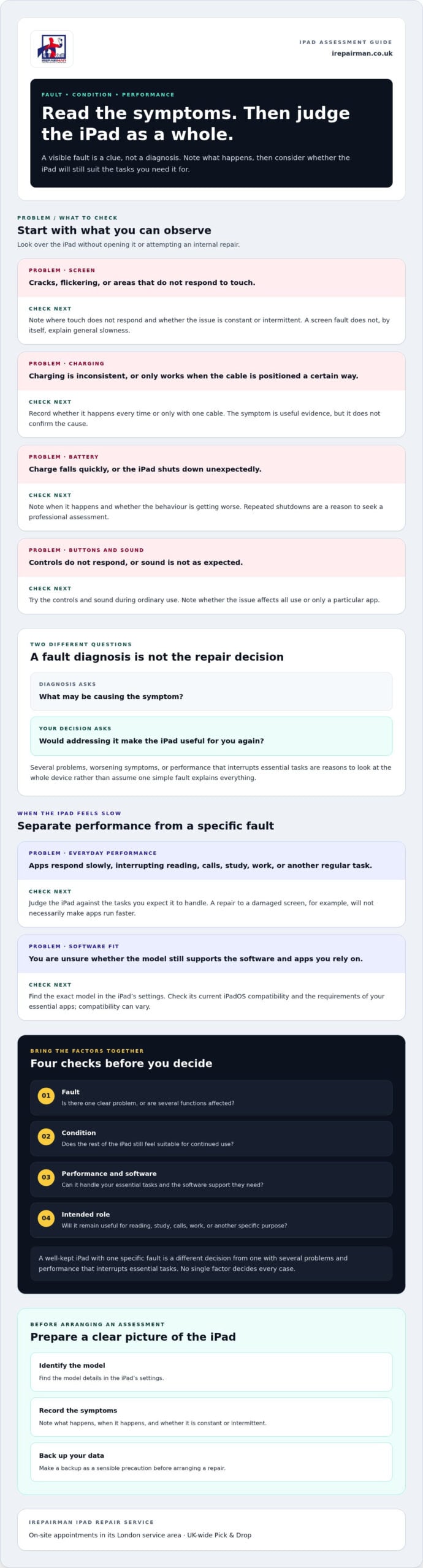
- Fault: Is there one clear problem, or are several functions affected?
- Condition: Does the rest of the iPad still feel suitable for continued use?
- Performance and software: Can it handle your essential tasks and the support those tasks need?
- Intended role: Will it remain useful for reading, study, calls or another specific purpose?
Several favourable answers can make an assessment worthwhile, but they can’t guarantee a particular repair outcome. If the fault, overall condition and intended use don’t line up, continuing to use the iPad as it is or moving on may suit you better.
How to assess an old iPad’s fault, condition and performance
To decide “Is my old iPad worth repairing?”, first build a clear picture of what’s wrong and what still works. A visible crack or charging problem is useful evidence, but it doesn’t reveal the cause by itself. Note what you see, when it happens and whether the issue is getting worse. Those details help a technician understand the problem, while an assessment is needed to identify its cause.
Check the fault without assuming its cause
Look over the iPad without opening it or attempting an internal repair. Check the screen for cracks or areas that don’t respond to touch, and see whether charging starts reliably. Note whether the battery seems to drain unusually quickly or the iPad shuts down unexpectedly. Try the buttons and sound during ordinary use, too.
- Screen: Is it cracked, flickering or unresponsive in certain areas?
- Charging: Does the iPad charge consistently, or only when the cable is positioned a certain way?
- Battery: Does charge fall quickly, or does the device switch off without warning?
- Buttons and sound: Do the controls respond, and can you hear sound as expected?
Record whether each symptom is constant, intermittent or linked to a particular activity. For example, note if charging difficulty happens every time or only with one cable, and whether sound problems affect all use or just one app. These observations give a clearer account of the fault without assuming what has caused it.
A fault diagnosis identifies what may be causing a symptom; a repair decision weighs whether addressing it will make the iPad useful for you again. Repeated shutdowns, worsening problems or several functions failing together are good reasons to seek a professional assessment rather than assume one simple fault explains everything.
Assess performance and software fit
Next, judge performance against the tasks you expect the iPad to handle. Notice whether familiar apps open and respond at a pace you can work with, or whether delays interrupt reading, calls, study or other regular activities. Separate an isolated fault from general slowness: repairing a damaged screen, for instance, won’t necessarily make apps run faster.
Software support matters as well. Find the exact model in the iPad’s settings, then check Apple’s current iPadOS compatibility information for that model. Review the requirements for the apps you rely on, too. Compatibility can vary, so don’t assume that every app will work simply because it opens today.
Consider the pattern as a whole. A single, clearly observed issue with otherwise dependable use may be worth assessing. If slow performance, software limitations and physical faults are all affecting essential tasks, a hardware repair may not address the wider problem. No symptom list can confirm the cause without an assessment of the device.
Repair is one option to weigh alongside continued use and responsible recycling. The UK Government and Recycle Your Electricals offer information on the environmental impact of electronics and local recycling options. If a fault needs expert attention, iRepairMan London’s iPad repair service can assess the device and explain the repair options.
Repair or replace an old iPad? Compare the decision factors
There’s no single sign that settles the decision. Weigh the iPad’s condition against how it performs, whether its software still supports your needs, what you expect to use it for and how disruptive repair would be. A professional assessment can help clarify the fault and possible repair options, but it can’t decide which tasks matter most to you.
| Factor | Repair may fit | Think carefully |
|---|---|---|
| Condition | The device is generally in good shape, with one main fault. | Several parts or functions are affected, or faults are worsening. |
| Performance | It handles your usual tasks reliably when the fault isn’t getting in the way. | Slowness already interrupts everyday use, even apart from the fault. |
| Software fit | Your essential apps and tasks remain compatible with the model. | Software or app limitations prevent you doing what you need. |
| Expected use | You have a clear ongoing role for it, such as reading or study. | Your next tasks demand functions or performance it can’t provide. |
| Disruption | The repair route can fit around your routine. | Being without the iPad would disrupt essential work or study. |
Signs that repair may fit your situation
Repair may be worth exploring when the iPad still meets your core needs and a specific fault is stopping you from using it as usual. For instance, if it remains suitable for reading course materials but a screen fault makes that difficult, an assessment can help establish whether addressing the fault is a practical next step.
Familiar apps, saved settings and established routines can also matter. You may prefer the way your iPad supports a particular study or work routine, and keeping that setup can be valuable. Still, a repair can’t promise restored performance or a particular length of further use. Treat several favourable factors as a reason to investigate, not a guaranteed result.
Signs to think carefully before choosing repair
Pause if the iPad has several faults at once, performs poorly during everyday tasks, or no longer supports the software and apps you rely on. Fixing one issue may leave the others untouched. Ask yourself whether the device’s current role is still the role you need it to fill next.
A professional assessment can clarify what may be causing the fault and which repair options are appropriate for the device. It won’t determine whether your priorities are reading, reliable video calls, study or work; that part is yours. If the iPad still suits its intended role and the fault appears limited, repair may be a sensible option to consider. If its broader limitations no longer match your needs, continuing to use it as it is or moving on may make more sense.
What to do before arranging an old iPad repair
A little preparation can make an iPad repair easier to arrange and help the technician understand the problem. Before booking, gather the model details, write down what’s happening, back up important data where possible and choose the service route that suits your location. These steps won’t determine the repair outcome, but they give you a clearer starting point for deciding whether to proceed.
Prepare the iPad and describe the problem
Use this checklist before arranging an assessment:
- Identify the model. Look in the iPad’s settings or check its identifying information on the device. The model helps the technician consider its age, software fit and repair requirements.
- Record the symptoms. Describe what isn’t working, when it happens and whether it’s constant or intermittent. Note any change you noticed before the problem began, such as a drop or a new charging difficulty, without trying to diagnose the cause yourself.
- Back up important data. Make a backup where possible before the device is handed over or collected. It’s a sensible precaution, not a promise that data will always remain unchanged during repair.
- Review account security. Follow the relevant account-security steps for your device and keep your passcodes private. Include any access instructions only when they’re needed for the assessment or repair process.
A precise description is more useful than a guess. “The screen sometimes stops responding near the edge” gives a technician a specific symptom to assess. If you’re wondering, “Is my old iPad worth repairing?”, this preparation helps establish what the fault is affecting, while the device itself still needs assessment before anyone can advise on the likely repair.
Choose an iRepairMan service route
For Central London and nearby locations within 15-20 miles of Baker Street Underground Station, on-site service lets you arrange an iPad repair at a practical location such as home or work. You don’t need to organise a trip to a repair shop. On-site repairs are usually completed in 20-30 minutes, although the time depends on the specific fault and not every repair will take that long.
If you’re elsewhere in the UK, iRepairMan’s Pick & Drop service provides another route. The iPad is repaired in the London workshop and returned by tracked delivery, with a typical total turnaround of 2-3 working days. This can be a practical option when an on-site appointment isn’t right for your location.
In either case, the technician assesses the iPad and its reported fault. That assessment helps clarify the repair options, but it can’t decide whether the device still suits your priorities. Once you’ve identified the model, recorded the symptoms and backed up your data, you can find the right iPad repair route for your location.
How iRepairMan helps you decide whether an old iPad is worth repairing
When you’re weighing up an older iPad, a clear assessment can help separate a specific fault from wider performance or software limitations. iRepairMan repairs iPads across generations and assesses the reported issue, without assuming every device can or should be repaired. The aim is to give you practical information to consider alongside how you use the iPad.
On-site iPad repairs across the London service area
Within 15-20 miles of Baker Street Underground Station, you can arrange on-site service at home, work or another suitable location. Same-day appointments are available, helping reduce disruption to your routine. The technician will assess the specific fault, explain the relevant repair options and carry out work where appropriate. An assessment can clarify the device’s condition, but it can’t guarantee a particular result or decide whether the iPad still meets your needs.
DBS-checked technicians provide the on-site service and explain the process plainly, so you know what is being assessed. You can share the iPad’s model and symptoms when arranging service, including whether the issue is constant or intermittent. That gives the technician useful context before looking at the device in person.
UK-wide Pick & Drop for iPad repairs
If you’re outside the on-site service area, iRepairMan’s UK-wide Pick & Drop service offers another route. Your iPad is collected, repaired in the London workshop and returned by tracked delivery. The typical total turnaround is 2-3 working days. The exact repair work depends on assessment, so this timeframe describes the usual overall service journey, not a promise about every fault or outcome.
Most repairs and replacement parts carry a 12-month warranty. The repair assessment can help establish what the reported fault may involve; the warranty provides reassurance about eligible repair work, not a guarantee that an older iPad will perform like a newer model.
Arrange an assessment that fits your situation
Before arranging service, have the iPad’s model, a short description of the symptoms and your location ready. Explain what you need the device to do, too. For example, if it’s mainly used for reading or study, say whether the fault prevents those tasks. This helps keep the assessment focused on the issue and the device’s real role.
If you’re still asking, “Is my old iPad worth repairing?”, iRepairMan can assess the specific reported fault and outline a repair route for consideration. You can then weigh that information against your expectations for performance, software and continued use. Repair is one option to consider, not an automatic answer.
Learn about iPad repairs with iRepairMan and share your model, symptoms and location to get started.
Make your next step a confident one
Is my old iPad worth repairing? The most useful answer is the one that fits your day-to-day needs. Before taking the next step, decide what you’d want the iPad to do if the reported fault could be addressed. That gives you a clear measure for weighing the repair options, without assuming that age alone determines the outcome.
You don’t need to settle every question on your own. Share what you’ve observed and what you need the device for, then use the assessment to make an informed choice. If repair makes sense for your plans, you’ll know what to arrange next. If it doesn’t, you can move forward with greater clarity rather than continuing to guess.
Arrange an iPad repair with iRepairMan to take the next step. A considered decision can help you make the most of the device that suits you best.
Frequently Asked Questions
Is an old iPad still useful if it no longer receives the latest iPadOS updates?
It can be, depending on your everyday tasks and whether the apps you need support its software. Reading saved documents may still suit an older model, whilst a study app may require a newer iPadOS version. Check your exact model against Apple’s current iPadOS compatibility information, then review the requirements for your essential apps. An iPad without the latest update isn’t automatically unusable, but its limitations may affect what you can do.
How do I find out which iPad model I have before arranging a repair?
Open Settings, tap General, then About to find the model name and model number. If the iPad won’t start, look for identifying information printed on the device or packaging. Keep both details handy when describing the fault, as two iPads that look similar may have different specifications. The model helps identify your device, but its name alone can’t establish whether a particular repair or part is suitable.
Can I keep using an iPad with a cracked screen?
It depends on how the screen behaves and whether handling the iPad feels safe. If the display is clear and touch controls work, you may be able to use it cautiously, but watch for cracks that spread or interfere with essential controls. Don’t handle it if damage has created sharp edges. Arrange an assessment to understand the screen fault; a screen repair wouldn’t necessarily address separate problems with the device.
Should I back up my iPad before sending it for repair?
Yes, back up important information before service where possible. This gives you another copy of items such as photos, notes and documents if you need to set up the iPad again. Follow Apple’s account and device-security guidance, and make sure you can access your own credentials afterwards. Share only information needed for the repair process. A backup is a precaution, not a guarantee that data will remain unchanged during service.
What should I do if my old iPad will not charge or power on?
Note what happens when it’s connected to power: for example, whether anything appears on screen, whether charging starts intermittently or whether there’s no response. Avoid repeated forceful attempts and don’t open the iPad. A charging issue or failure to power on can have different causes, so these observations help describe the problem but can’t diagnose it. A technician needs to assess the reported symptoms before advising on repair options.
Is a swollen iPad battery safe to keep using?
Stop using or charging an iPad that appears swollen, and seek appropriate professional guidance promptly. Don’t press on the device, puncture it or try to remove the battery yourself. Keep it somewhere it won’t be handled unnecessarily whilst you arrange advice. Swelling needs careful attention; an assessment is needed to determine what’s happening and what action is suitable. Don’t resume use simply because the iPad still turns on.